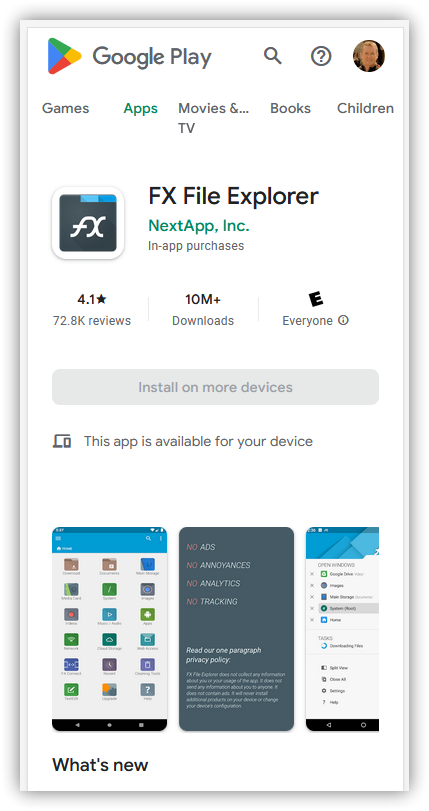
NOTE: if you don’t download the FX File Explorer app and follow the steps below, then this won’t work. The android phone file browser won’t do anything with the MCPACK file.
Every gamer wants to have their own player skin – here’s how you can set your custom skins for Minecraft Education Edition on an Android mobile device. There are hundreds of thousands of people using Minecraft Education on their phones particularly in the Philippines where schools are using Minecraft Education Edition in learning.
Minecraft Education Edition – set a custom skin on an Android mobile phone
What you will need:
- Android phone
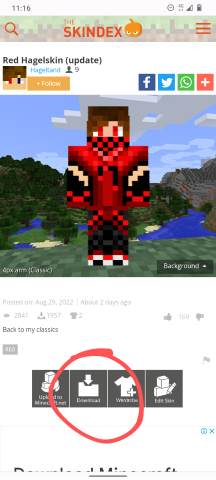
- a PNG file of a Minecraft skin (download free from Skindex) for this demo I’m using a skin called Red Hagelskin
- a free android file management app called – FX File Explorer – without this app the following steps will not work for you)
Installing a Custom Skin on android phone – Minecraft: Education Edition
From the Android Play Store install the app FX File Explorer – https://play.google.com/store/apps/details?id=nextapp.fx&hl=en_AU&gl=US
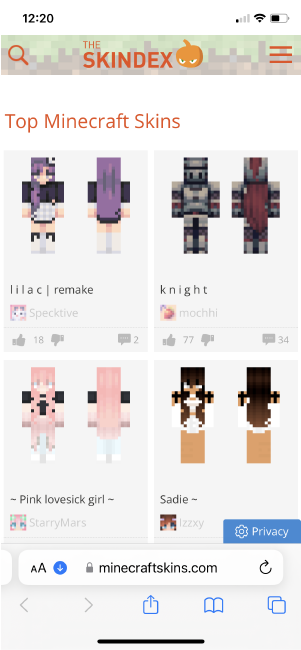
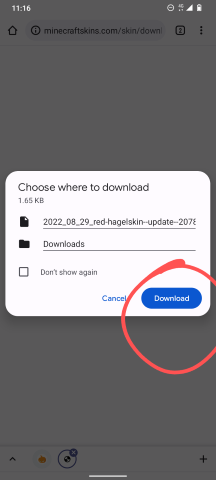
Go to Skindex (minecraftskins.net) and choose a skin to download – save the download to your Android mobile
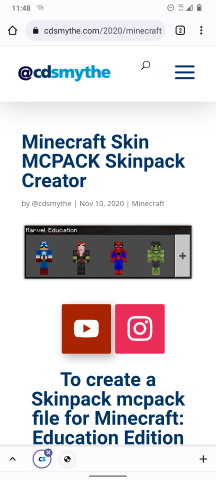
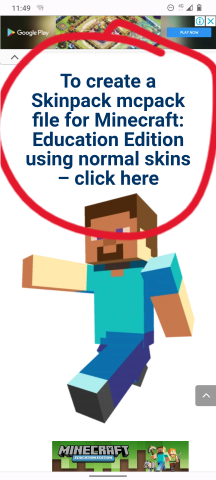
Complete the mcpack creator Form on the webpage
– Skin pack name – any name for the pack eg. Red Hagels
– Add your skin – drag your downloaded Skin png onto the box, or tap the box to choose it (you can add several skins at once)
– Name – each skin is named from its file name, tap the name to change it
– Steve or Alex – choose the body shape for each skin
– Tap Download Pack
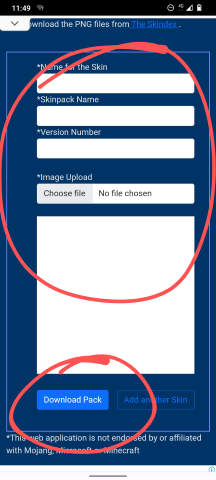
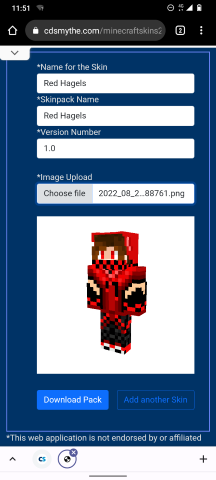
Click Download Pack and the MCPACK creator form will create the mcpack and offer it to download – save this to your Android mobile phone
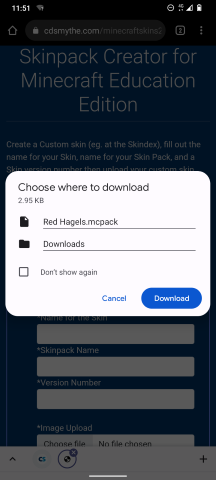
Now to install the new skinpack into Minecraft: Education Edition
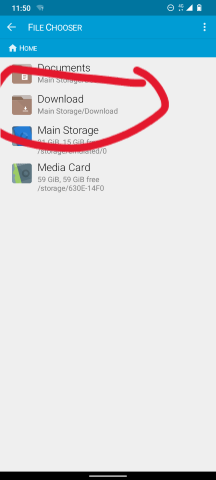
Open the FX File Explorer app and browse to where the recent downloaded MCPACK file is saved (probably the Downloads folder)
“Long press” the downloaded file ending with mcpack.zip, click the More Options (3 vertical dots) and select Rename
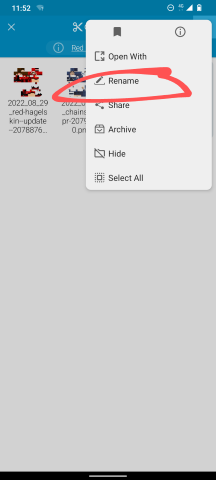
delete the last 4 characters from the name – .ZIP so the file just ends in “.mcpack”
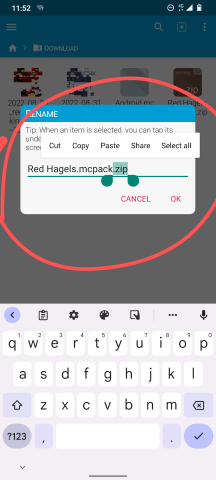
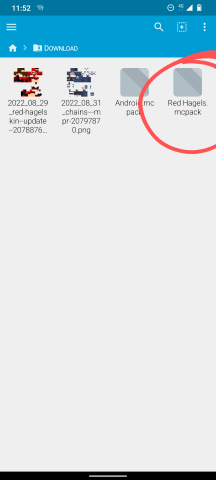
Tap the mcpack file to open it, choose to open with Minecraft Education Edition
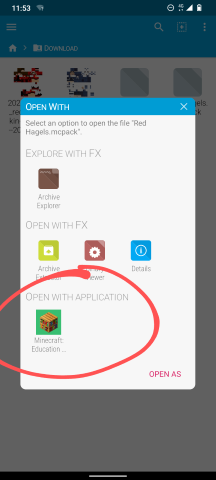
The Minecraft Education Edition app will open on your android mobile phone and start importing the custom skin
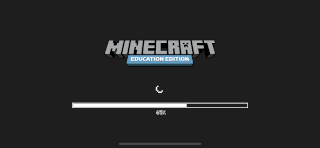
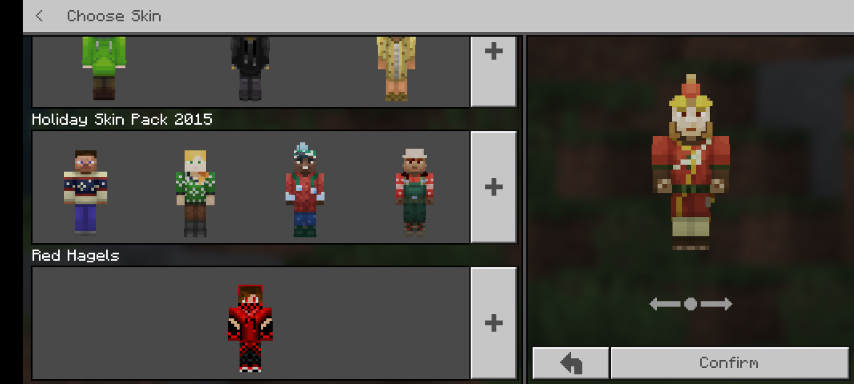
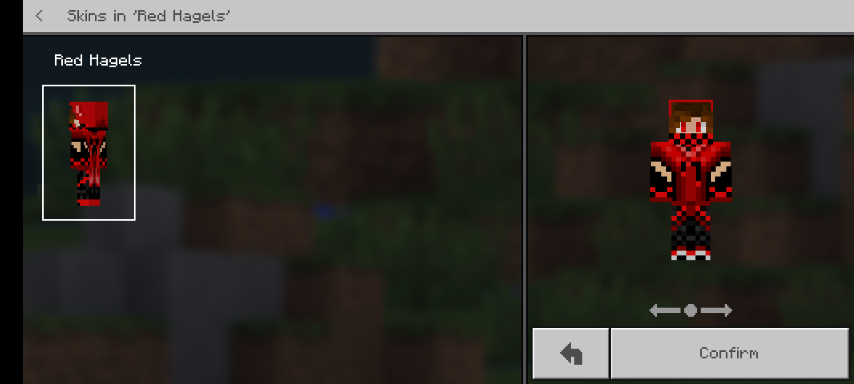
Click the coathanger on the front screen of Minecraft: Education Edition to change your skin – scroll to the bottom of the list to see your new custom Minecraft Education skin imported for your android mobile phone