Minecraft: Education Edition – Skin MCPACK Skinpack Creator

Minecraft: Education Edition – Skin MCPACK Skinpack Creator

To download a skinpack ready to import into Minecraft Education edition – check what is available in the Minecraft Education skinpacks link on the menu.

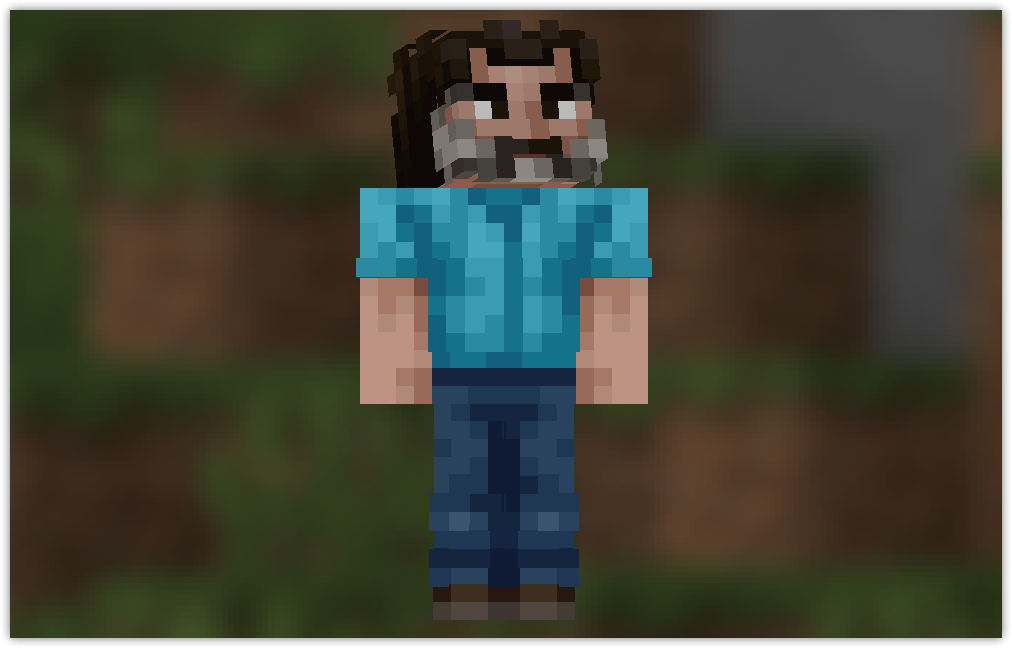
Minecraft Education skins – Minecraft Movie

Minecraft Education skins – Minecraft Movie

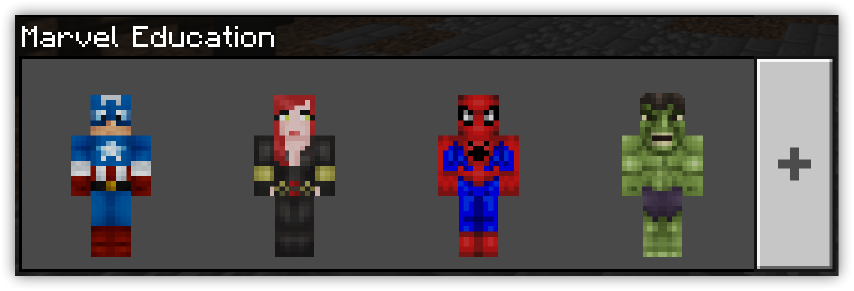
Minecraft Movie Skin Pack Minecraft Education This guide shows you how you can customize your appearance in Minecraft: Education Edition to characters from the Minecraft Movie. If you want to do this on your iPad see the guide HERE Minecraft Education Edition requires...
read more
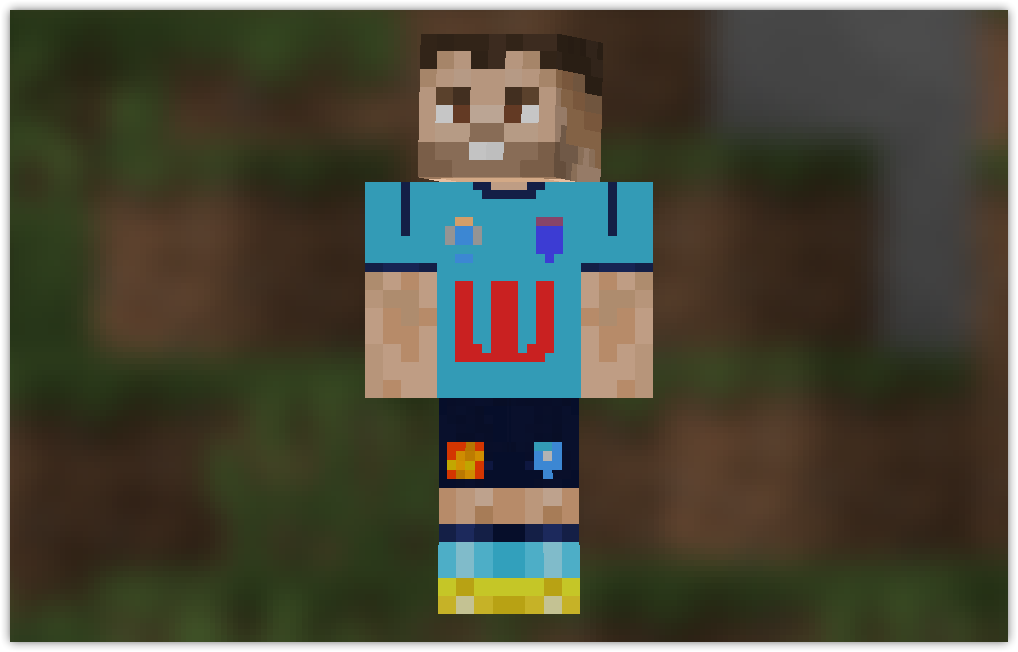
Minecraft Education skin – NRL NSW Blues

Minecraft Education skin – NRL NSW Blues

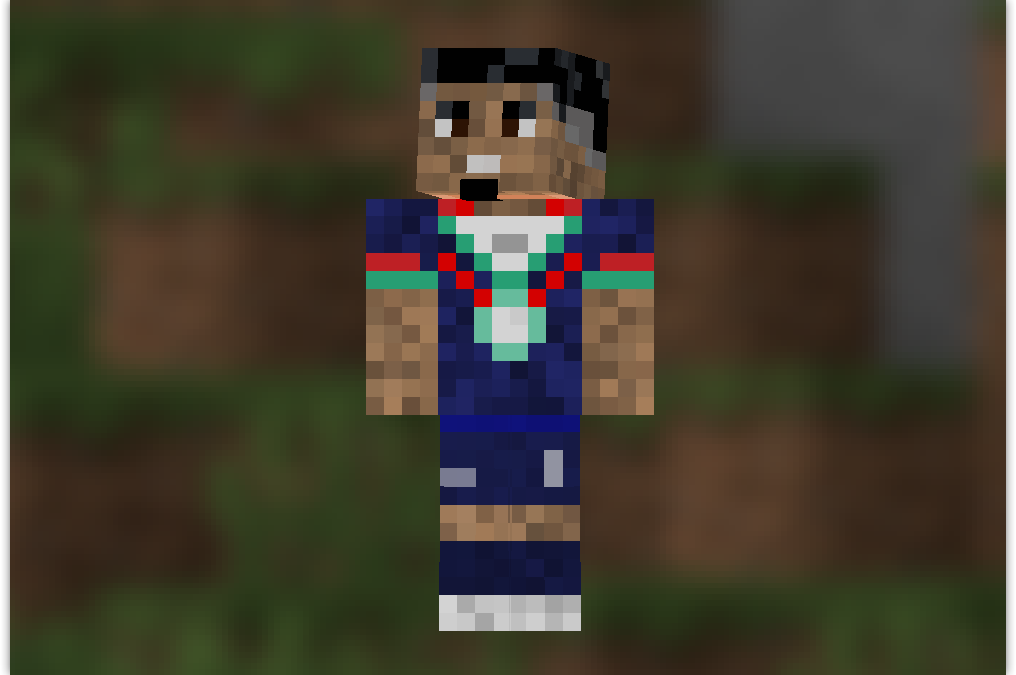
NRL NSW Rugby League Skin Pack Minecraft Education This guide shows you how you can customize your appearance in Minecraft: Education Edition to famous NRL NSW Rugby League. If you want to do this on your iPad see the guide HERE Minecraft Education Edition requires...
read more
Minecraft Education skin – NRL Warriors – Ali Leiataua

Minecraft Education skin – NRL Warriors – Ali Leiataua

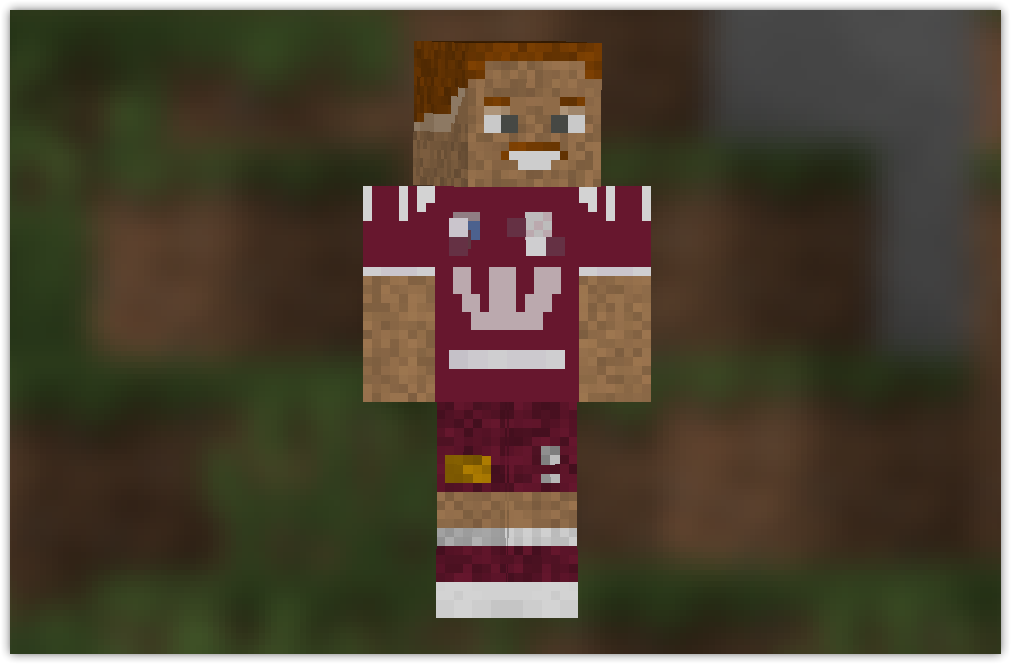
NRL Warriors Rugby League Skin Pack Minecraft Education This guide shows you how you can customize your appearance in Minecraft: Education Edition to famous NRL Warriors Rugby League. If you want to do this on your iPad see the guide HERE Minecraft Education Edition...
read more
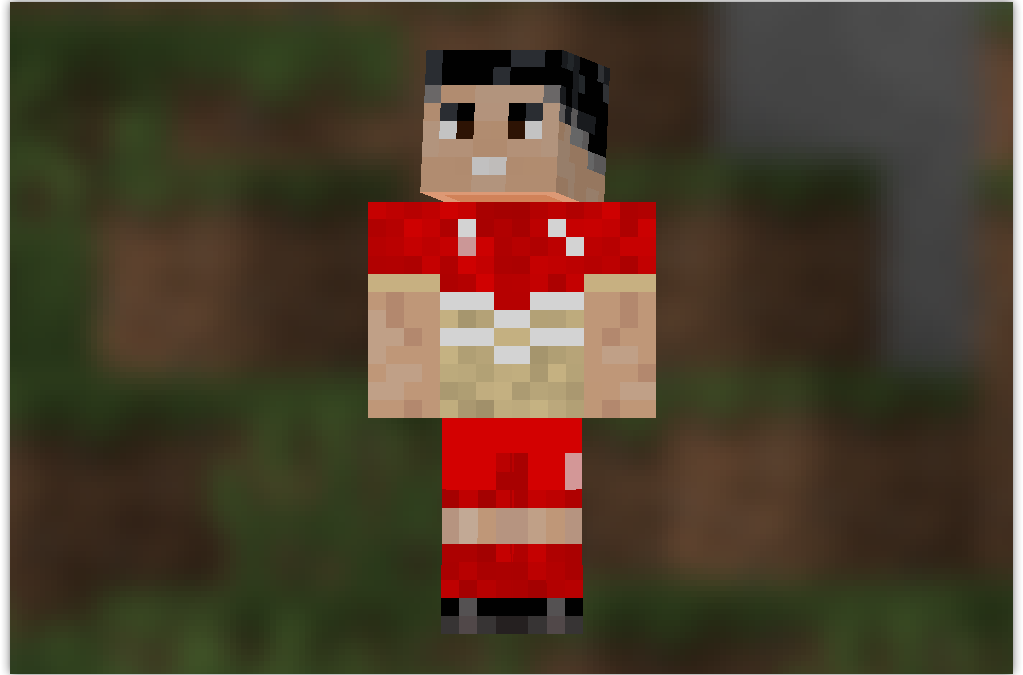
Minecraft Education skin – NRL Queensland

Minecraft Education skin – NRL Queensland

NRL Queensland Rugby League Skin Pack Minecraft Education This guide shows you how you can customize your appearance in Minecraft: Education Edition to famous NRL Queensland Rugby League. If you want to do this on your iPad see the guide HERE Minecraft Education...
read more
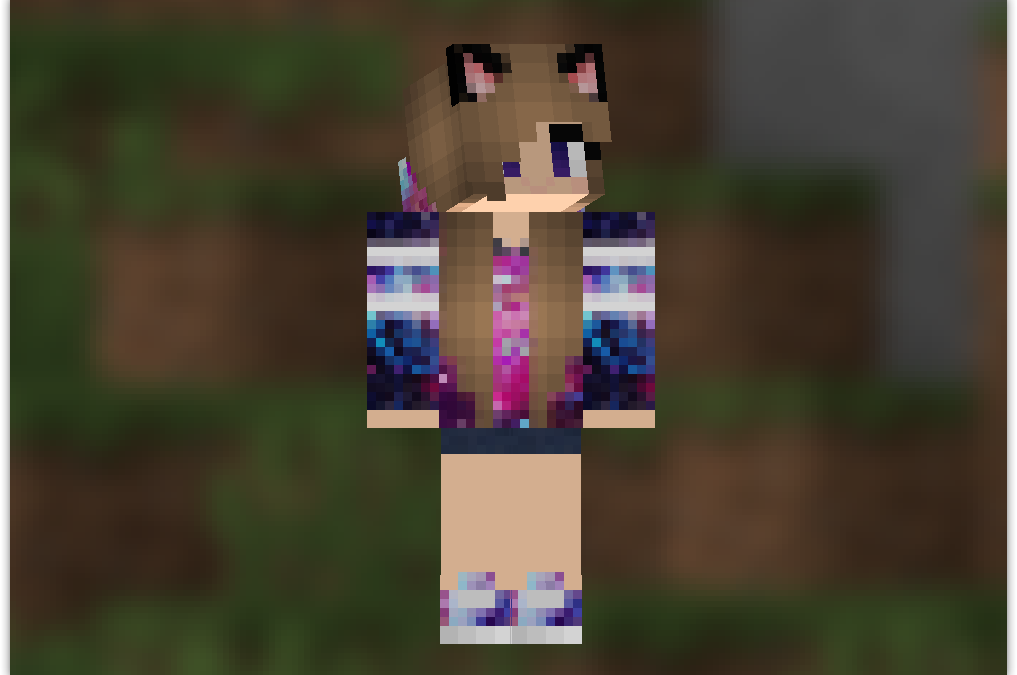
Minecraft Education skin – NRL Dolphins

Minecraft Education skin – NRL Dolphins

NRL Dolphins Rugby League Skin Pack Minecraft Education This guide shows you how you can customize your appearance in Minecraft: Education Edition to famous NRL Dolphins Rugby League. If you want to do this on your iPad see the guide HERE Minecraft Education Edition...
read more
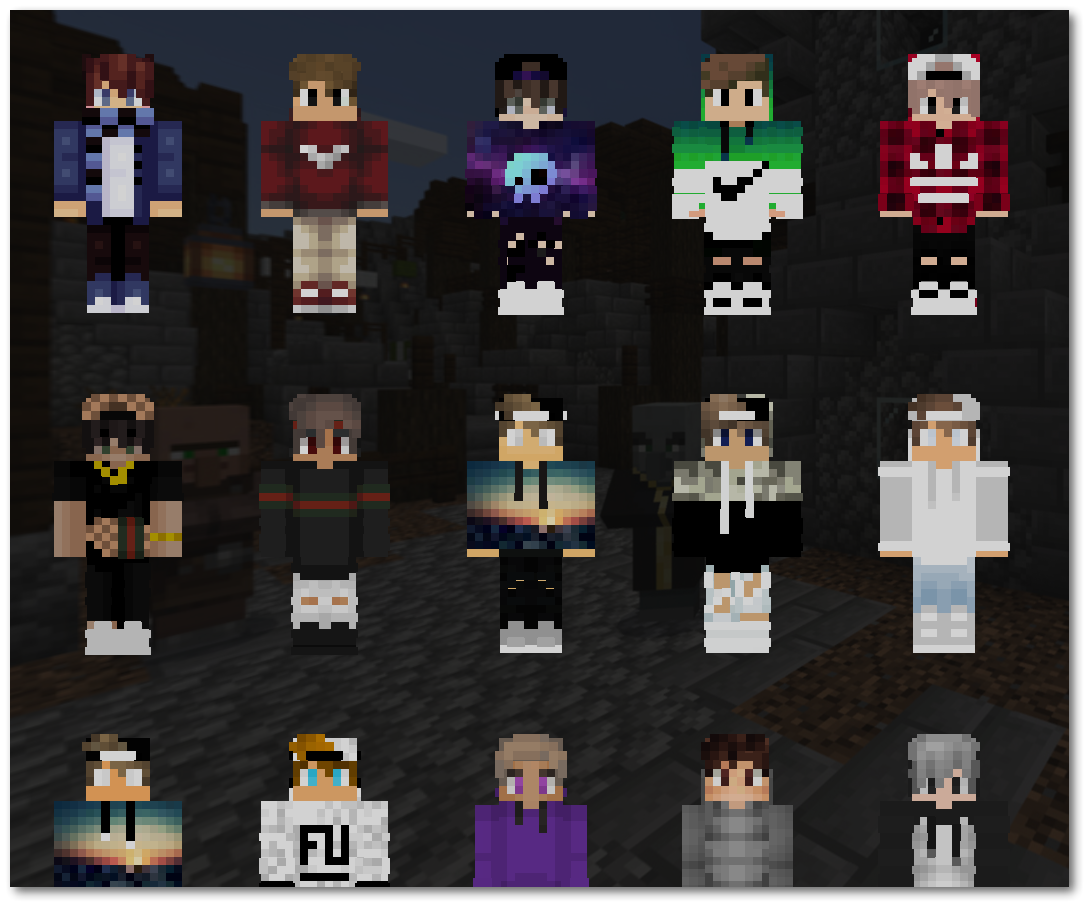
Minecraft Education skin – Galaxy Girl

Minecraft Education skin – Galaxy Girl

Galaxy Girl Skin Pack Minecraft Education This guide shows you how you can customize your appearance in Minecraft: Education Edition to famous Galaxy Girl. If you want to do this on your iPad see the guide HERE Minecraft Education Edition requires you to import a...
read more
Minecraft: Education Edition – Free Skins Download

Minecraft: Education Edition – Free Skins Download

download skins for minecraft education edition

Minecraft Education Edition won’t let you install custom skins – but there are a couple of ways for you to do that yourself.

Are you bored with the default skins that come with Minecraft Education Edition?

Create your own custom skin
Now you can follow this link and you can create a custom skin

Download a custom skin pack

There are a few skinpacks I have created based on the NRL Rugby League competition and also Formula 1. Check out the Minecraft Education skinpacks link in the menu.

You can also click the link below to download a pack of casual skins which you can import into Minecraft Education Edition.

Download the MCPACK file, then double-click it to open in Minecraft Education Edition. If you have multiple versions of Minecraft installed on your device it would be easier to first open Minecraft Education Edition, then choose to Import the MCPACK file you downloaded.

Download Minecraft Education Casual Skin Pack

Download the skinpack click hereCasual-Skins MCPACK


Minecraft: Education Edition – How to add a custom skin on Apple Mac

Minecraft: Education Edition – How to add a custom skin on Apple Mac

If you’re playing Minecraft: Education Edition on a Mac computer, then here is a guide on how to add your own custom Skins to Minecraft Education Edition.

See this alternative guide for installing custom skins to Minecraft Education Edition on a Windows computer

Install Custom skins for Minecraft Education Edition on a Mac computer

  • Using the Minecraft skinpack creator form (click here to open Form in new Tab), give the Minecraft Skin and Skin template a name and give it any version number
  • Then browse and select your custom Skin .PNG file from your computer and click submit
  • Download and Save the MCPACK file created by the form
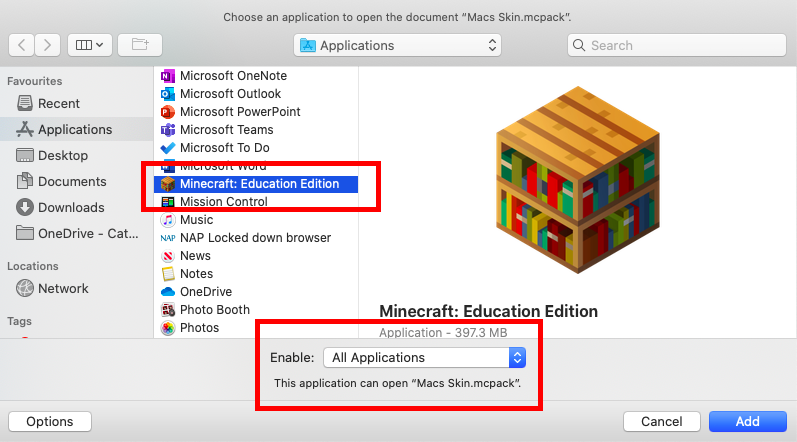
  • Open Finder and double click the downloaded MCPACK file
  • In the File drop down choose All Applications then scroll the Applications and select Minecraft Education Edition, then click the Add button

add custom skins to minecraft education on a mac

Minecraft Education Edition will then open and import your custom skin on your Mac computer.


How do I delete a custom skin for Minecraft Education Edition on a Mac Computer?

You just need to navigate with Finder to the Location where the Skin Packs are Stored and Delete the Skin Pack that you dont want.

Skins are stored in (replace [your user name] with your own username):

MacintoshHD/Users/[your user name]/Library/Application Support/minecraftpe/games/com.mojang/skin_packs

To get there, open a Finder window and from the menu click Go and Go to Folder

then type in:

~/Library/Application Support/minecraftpe/games/com.mojang/

Open the skin_packs folder and delete the Folder for the skin you no longer want

Minecraft: Education Edition – How to add a custom skin on your computer

Minecraft: Education Edition – How to add a custom skin on your computer

Skin pack Creator for Minecraft

Game players love creating and customizing their character skins – their appearance. This guide shows you how you can customize your appearance in Minecraft: Education Edition.

If you want to do this on your iPad see the guide HERE

Minecraft Education Edition requires you to create a MCPACK file which contains all the files required for your custom Minecraft skin. The PNG image file and a couple of JSON files.  Matt’s work means you only need to have the PNG image and his online tool will create the JSON files and package those with your image into the MCPACK file required by Minecraft.

So now only a couple of steps are needed – lets get into it.

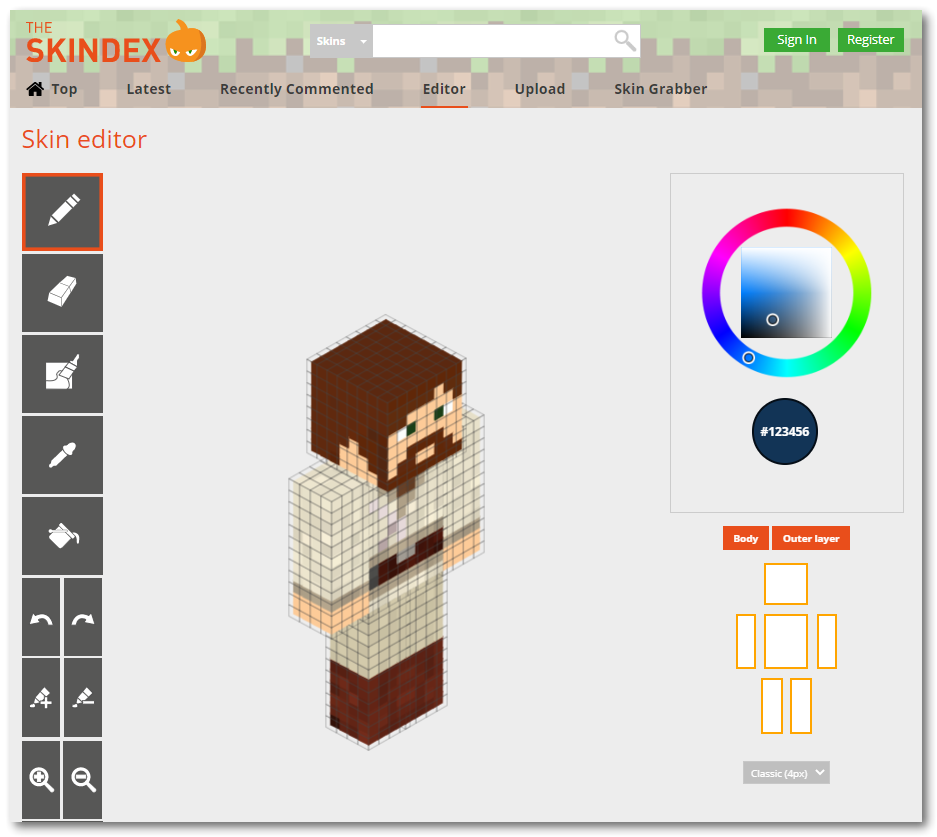
Step 1 – Create your Custom Minecraft Education Edition Skin

  • go to The Skindex – create, edit and download the PNG file required for your new custom Minecraft skin
  • (you can go to any site that has PNG files of skins, also see https://mcpedl.com/)

Step 2 – Create the MCPACK File

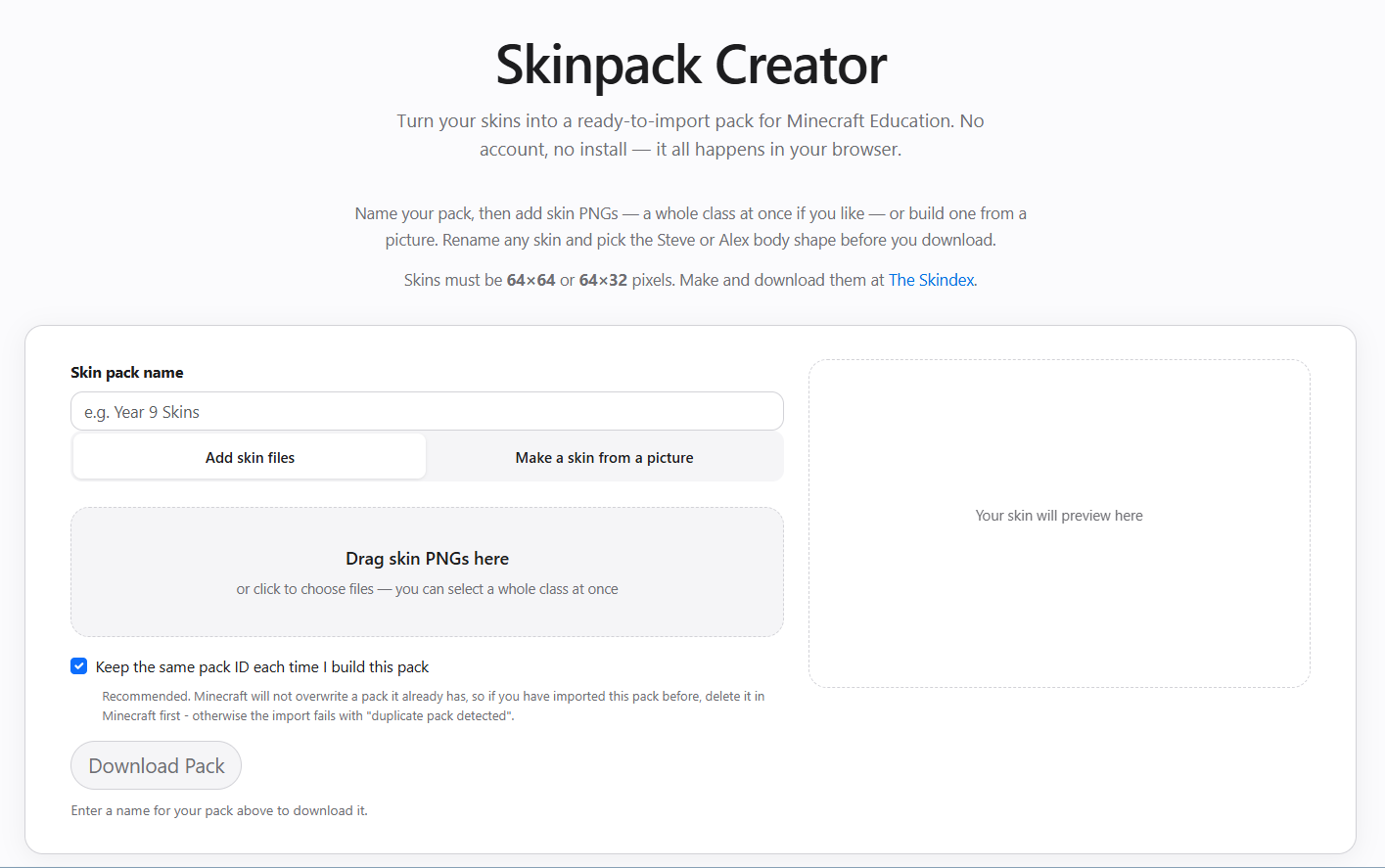
Minecraft custom skin mcpack creator
  • Complete the Form with your Skinpack name
  • Add your files – you can add multiple files eg. a whole class (name the individual PNG files with student first names for example)
  • Click Download Pack and save the generated MCPACK file containing everything for Minecraft Education Edition to your computer
  • double click the file which will trigger opening Minecraft Education Edition and the import of your new custom skin will happen automatically or you could open Minecraft Education Edition and choose to Import the MCPACK file.

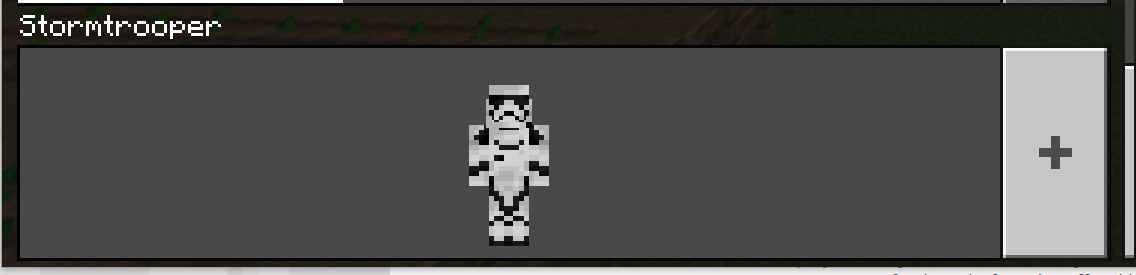
After your MCPACK Skinpack file is imported it appears in the Skins section of Minecraft Education Edition for you to select

skin pack creator for minecraft education edition custom skin

The Skindex how to add Minecraft Education edition customskins
Minecraft: Education Edition – How to Add Custom Skins

Minecraft: Education Edition – How to Add Custom Skins


Updated: November 24 2020

NEW UPDATED POST – Click this link to my latest guide – there is now an even simpler method making use of a new Skin Pack Creator tool  – the tool will create the mcpack file for you).

In Minecraft you are able to click the Hangar on the Home page and choose a different “Skin” for your character. Your Skin – is what you look like in Minecraft.  When you click the Hangar you will see a number of Skin Packs available from which you can select a new Skin for your Character.

Check Out – YouTube Hacks for Students and Teachers 2021

But it’s not easy to import new Skins into Minecraft: Education Edition to select from. A Skin Pack requires three JSON files to exist along with the PNG image files of the Skins. There are free online Minecraft Skin makers available like – Minecraft Skins – where you can create and download the PNG image.  But I cant find anything to easily generate the JSON files needed. For this example I’m not going to work with the Slim character skins.

This guide takes you through the process of creating a Skin Pack and importing it into Minecraft: Education Edition.


Step One – get template files and images

Gather Resources to Create your Skin Pack

You’ll need the following to create your own Skin Pack for Minecraft: Education Edition

  • A short name for your skinpack
  • two PNG image files for the actual skin textures you want to use – check out Minecraftskins.net
  • Two unique Version 4 UUID numbers – generate these from UUIDgenerator.net
  • Three files to edit:
    • manifest.json
    • en_US.lang (or en_UK.lang depending on the Language you have set to use in Minecraft: Education Edition)
    • skins.json

Download an Example and a Template set of these files to customise for yourself from here

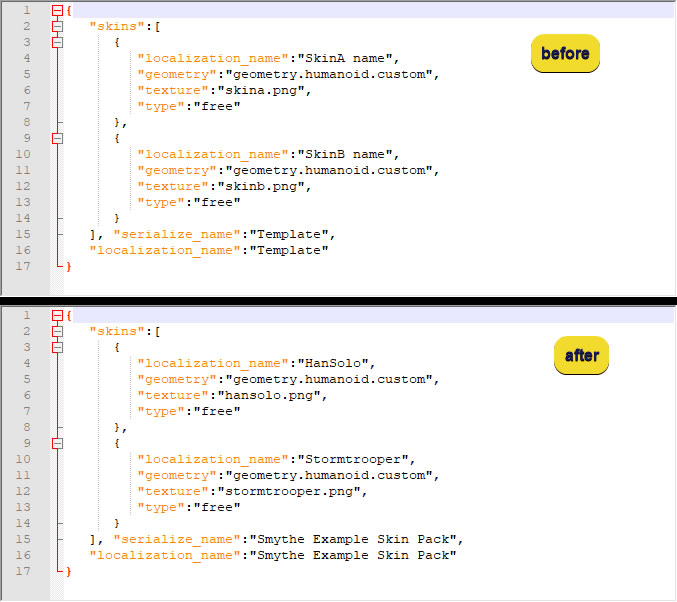
Below I will show you how to edit the Template files and use the Example files as my intended skin pack. So I will end up with a Skin Pack titled – Smythe Example Skin Pack, which contains two skins called HanSolo and Stormtrooper.

Step Two – Edit Files

Edit:   skins.json

Open from the template pack – skins.json
Replace all the following text variables (including the brackets) with your names

  • SkinA name = change to your first skin name
  • skina.png = change to your first skin filename
  • SkinB name = change to your second skin name
  • skinb.png = change to your second skin filename
  • Template = change to your Skin Pack name
Minecraft skins in Mincraft Education edition

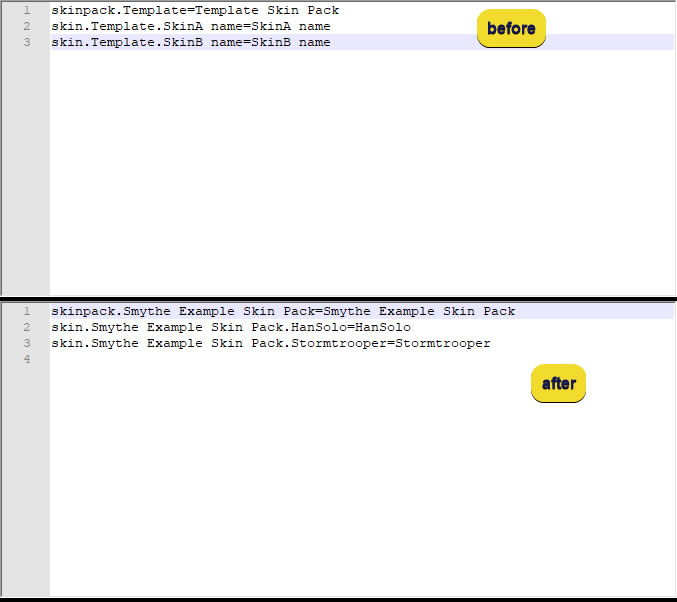
Edit:   en_us.lang

Open from the template pack – en_us.lang (assuming that’s the Minecraft Language setting you’re using)
Replace all the following variables (including the brackets) with your names

  • Template = change to the name of your skin pack
  • SkinA name = change to your first skin name
  • SkinB name = change to your second skin name
Minecraft skins in Minecraft Education edition

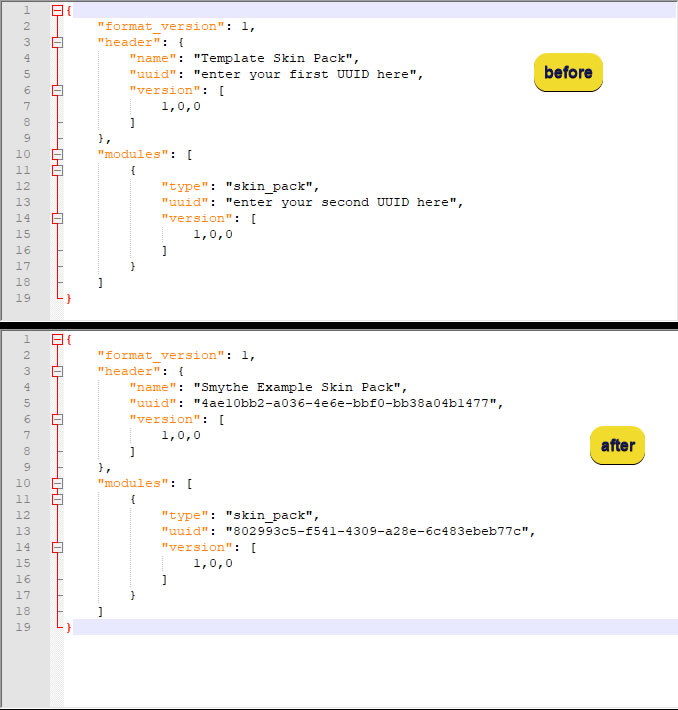
Edit:   manifest.json

Open from the template pack – manifest.json
Replace all the following variables (including the brackets) with your names
Visit uuidgenerator.net to generate two unique UUID number for this file

  • Template = change to the name of your skin pack
  • first UUID  = generate UUID 1 from uuidgenerator.net using version 4 UUID
  • second UUID  = generate UUID 2 from uuidgenerator.net using version 4 UUID
Minecraft skins in Minecraft Education edition

Step3 – Create .mcpack file and install in Minecraft: Education Edition

Now that you have all your files ready, you need to create a compressed file to import into Minecraft: Education Edition

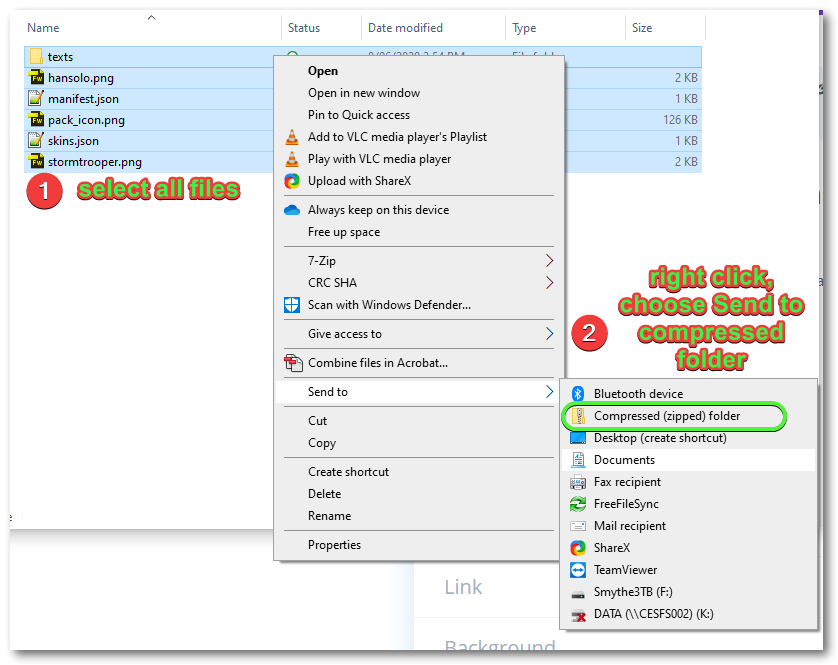
  1. Select all the Files in the template folder
  2. Right click and choose – Send to compressed (zipped) folder
Minecraft skins in Minecraft Education edition

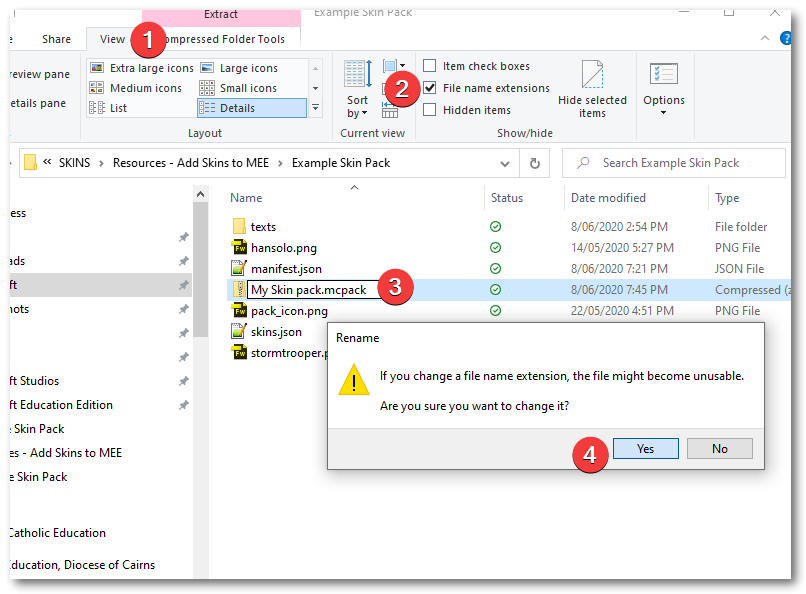
Change the compressed file type from zip to mcpack

  1. In File Explorers View tab,
  2. make sure File Name Extensions is selected,
  3. change the zip text to mcpack
  4. click YES on the warning popup to accept the change


Minecraft skins in Minecraft Education edition

To install your Skin Pack into Minecraft: Education Edition:

  1. Open Minecraft: Education Edition
  2. Browse in File Explorer to your skin pack mcpack file and double click it. This will start the import into Minecraft:EE

Additional Notes

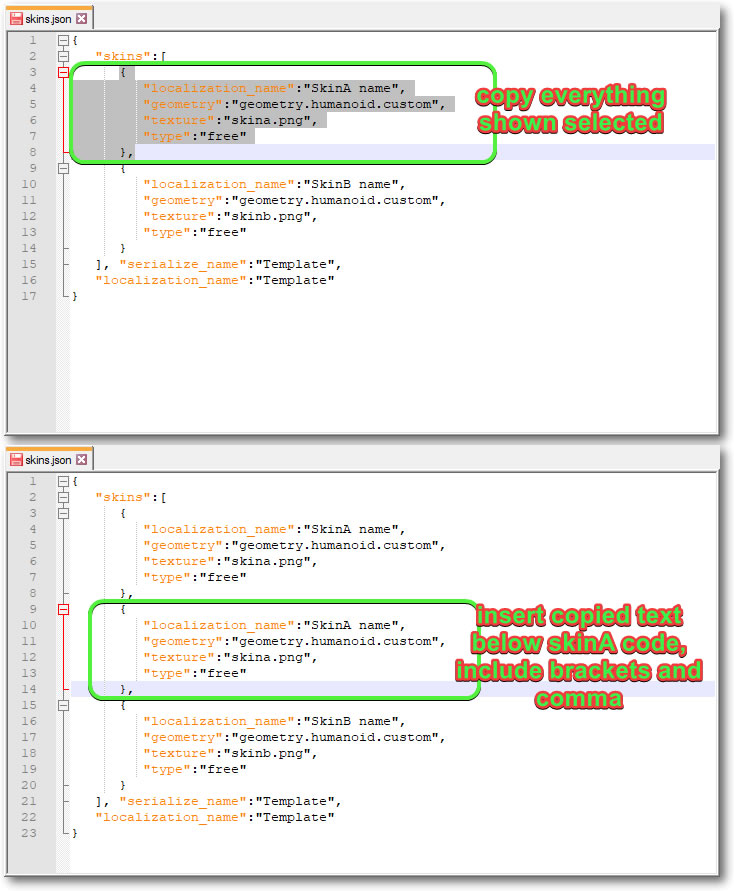
If you want to add more Skins to your Pack:

  • en_us.lang – add additional lines
  • skins.json – copy and paste the code section for SkinA and edit accordingly with skin name and file name

Designing Skins?

Minecraft skins in Minecraft Education edition
buy minecraft pocket edition