Today I was going through the different features of Microsoft Teams when a staff member asked me “How do you manage to keep up with all these changes in this stuff??”.
Well here’s how I stay fresh and how you can too – it’s really easy and is available in Microsoft Teams from the Search bar.
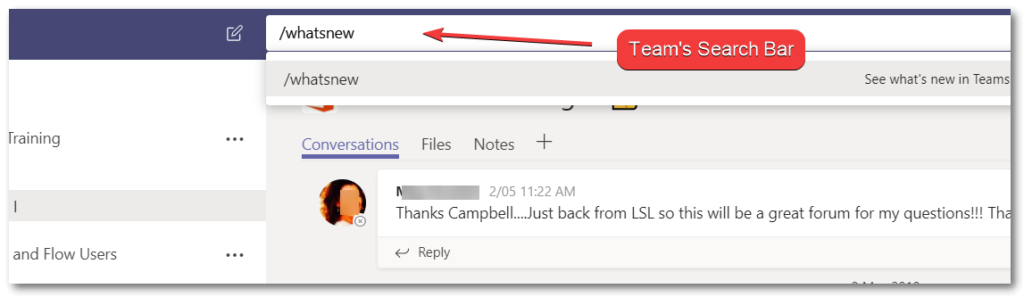
Open Microsoft Teams and in the Search Bar at the top of the screen type /whatsnew
When you include the forward slash Teams recognises the entry as a Command, not as something you are searching for in a Conversation or Chat.
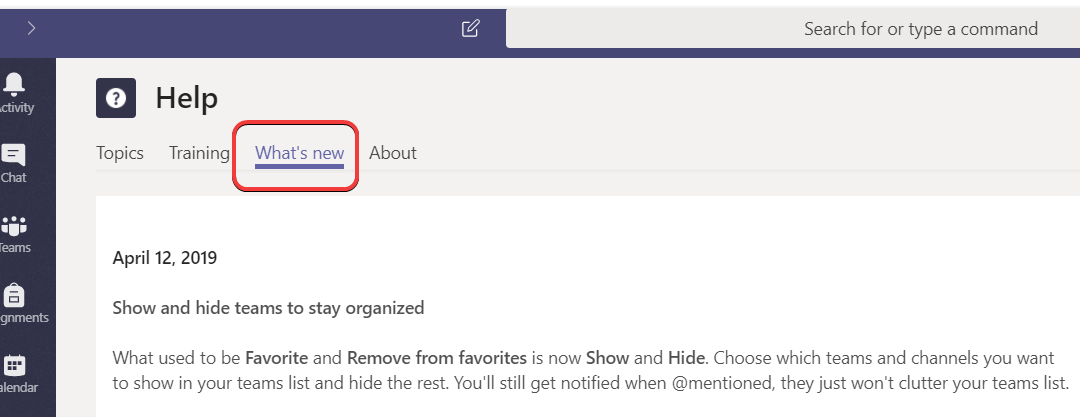
That /whatsnew Command – will take you directly to the Help Section in Teams and show you the latest features to be added or tweaked in Teams by the Microsoft Developers.
There are other commands you may find helpful – type the forward slash into the Teams Search Bar and hit enter and you’ll see a list appear.
Microsoft also run a Uservoice website for each of their products. This is well worth contributing to and if you have an idea for a feature or wish a product did something it currently doesn’t – you can search Uservoice to see if someone else has made the same suggestion and Vote for it. If it’s not there suggest it and give others the chance to vote it up.
Microsoft Teams is a collaboration tool now used in over 500,000 organisations (March 2019). It supports groups of people working together by providing communications, file sharing and information storing modules. The Conversations area in Teams is a place where you can discus topics formerly sent around using email.
These 3 tips for using Microsoft Teams Conversations will show you how to:
Format Text in a new Conversation Post
Use the @mention to alert a Team Member about a conversation
Use the @mention to alert ALL Team Members about a conversation
3 Tips when using Conversations in Microsoft Teams
1. Format Text in a New Conversation Post
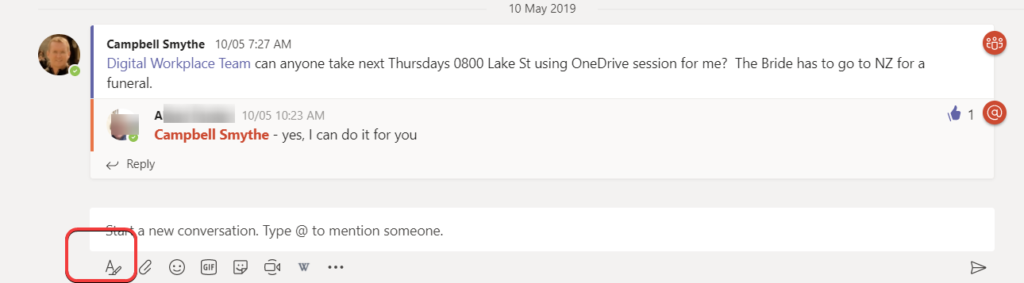
When you create a new conversation thread use the format text button to:
add a Subject line to your conversation
modify text colours, bold, underline anything appropriate, or mark the conversation as important
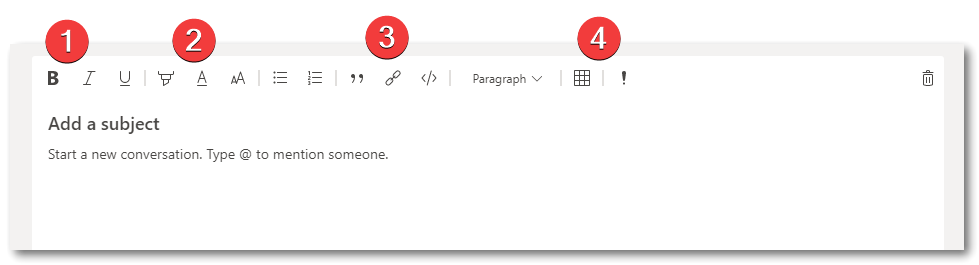
After opening the text format box youll see that you are able to:
modify font style – Bold, Underline, Italics
highlight text, change font colour and change font size
insert hyperlinks
insert tables and mark the Conversation as Important
This will make you a Conversation pro and help your posts to stand out!
2. Use the @mention to alert a Team Member about a conversation
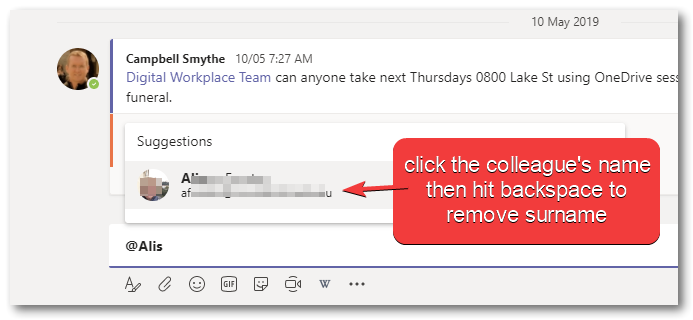
In a new Conversation or a Reply you can tag or @mention a colleague so they receive a notification about your post. In your post simply type the @ symbol followed by the members name, then click their card when Teams finds them in the directory. You are able to backspace and delete their surname if you want to keep things more personable.
3. Use the @mention to alert ALL Team Members about a conversation
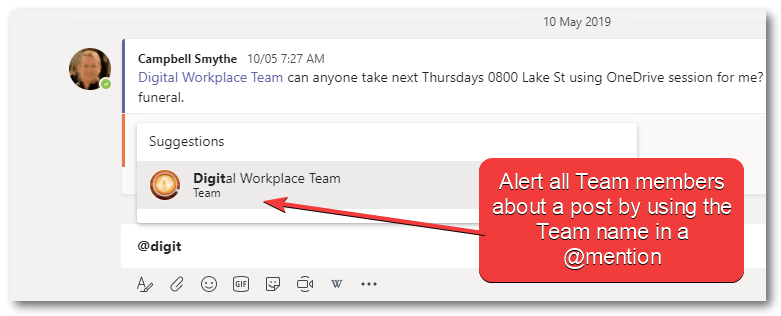
In a conversation post or reply, if you @mention the Team name it will generate a notification for each Team member. Depending on their notification settings a banner or Banner and email will appear for them. I’d suggest using this in a Teams Conversation where you are finding members not responding to requests or not interactive when seeking input! 🙂
If you have another Tip for people using Conversations comment below! I hope those 3 are helpful and you can be more productive by using them.
Microsoft Teams is a collaboration tool which provides an online space for a group of people working together. The Team provides communication tools, file storage, information storage and a place for video/text/audio messaging and meetings.
You would create a Microsoft Team for a group of people working together – on a project or together in the long term as a group of staff like – Finance, HR, Science Teachers, Leadership Team, Directors, etc etc.
The Microsoft Teams the core features which support collaboration are:
Chat – connect to anyone in your organisation, not just those you are Team members with
Teams – different Teams for different groups of people. Contains Conversations, Files, OneNote, links)
Meetings – host or join online meetings (audio or video) which can be recorded and saved in Teams
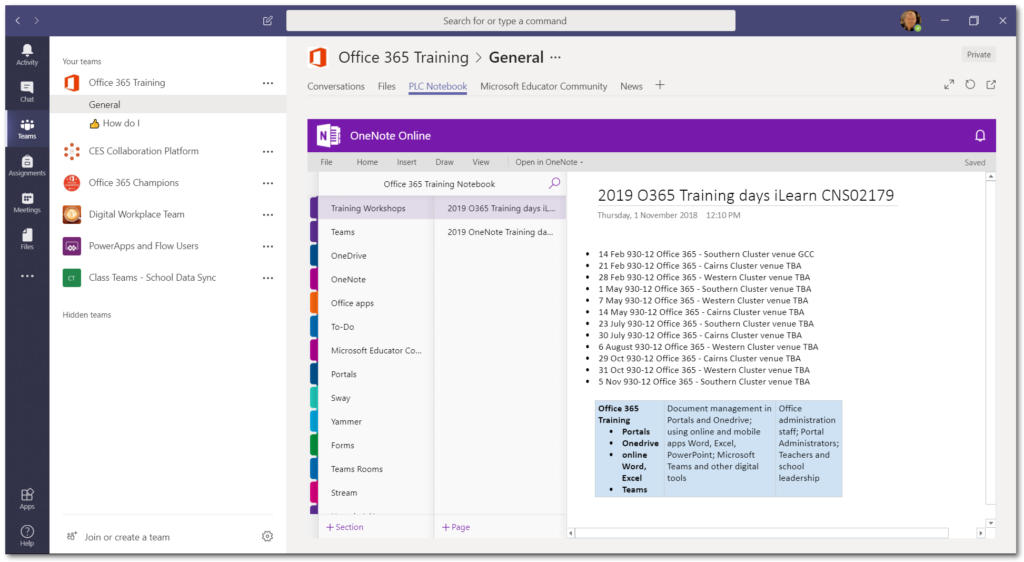
Here’s what the Teams interface looks like:
You can see in the layout that once you have selected the Teams module within the Teams window you have sections titled: Conversations, Files and PLC Notebook.
Conversations
The conversations area is where Team members can post new conversations (like posts in a discussion board). Post a New Conversation and team members can reply. Use text, images, emojis, GIFs, and @mention a colleague to alert them that they have been mentioned/tagged in a post.
Files
This is the file storage location for members of this team. Office documents can be edited from within Teams, using the online versions of Office apps, or opened on your computer using installed versions of Word, Excel, PowerPoint etc. This Files section can also be synced to your laptop just like your OneDrive by opening the Files section in SharePoint and clicking the Sync button. Typically the files stored here would be considered working documents – documents which require input from multiple team members. A SharePoint portal would be used to share finalised documents
PLC Notebook
Every Team includes a OneNote notebook. This is a great tool on it’s own and within Teams it provides a shared notebook to store information the team needs. For example the notebook could have sections in it to: store team meeting agendas and minutes; “How to” information for shared or team tasks; project notes; reference information on venues and travel; notes from professional development workshops members have attended;
Microsoft Videos for getting started and using Teams
Follow this link to see a whole swag of helpful videos:
So a couple of great tools put out by Microsoft have the ability to connect and create together – doing something which will make users of both these productivity tools very happy! OneNote Send to Sway addin makes it easy to create a Sway presentation straight from your OneNote notebook.
Microsoft OneNote
OneNote – is Microsoft’s app in Office 2016 which stores your notes, details, web clippings, audio, files – everything – in a NoteBook format organisable using Sections and Pages. If you arent using it and you use Office – then you should really take a look at it. If you are an Evernote Premium user – then you should most definitely take a good look at OneNote and save yourself some money.
Microsoft Sway
Sway – is Microsoft’s quickest content-to-presentation creator. It can import content from other Office apps and create beautiful looking and working multimedia presentations with ease, combining fonts, transitions and images with your content. Students in every subject are being asked by their teachers to create “multimodal presentations” or websites to present their learning – Sway makes that deadset easy as.
So good news now is that Microsoft have created a “OneNote Send to Sway” addin which once installed in OneNote makes it easy to send content from OneNote to Sway. Big win for students is that so many teachers now are using OneNote with their classes. So the publishing stage doesnt become enormous.
How to Send Content from OneNote to Sway
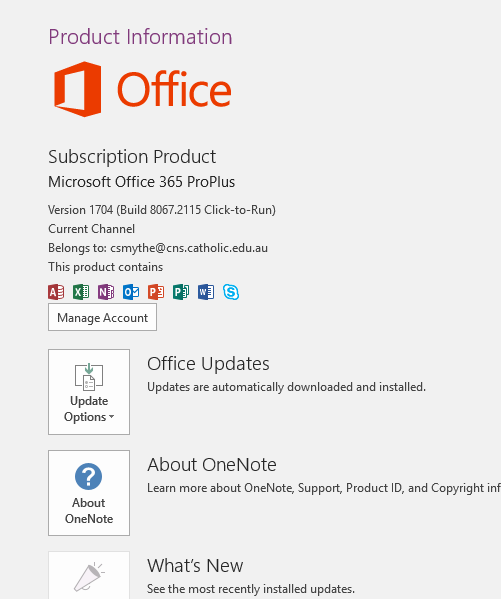
First of all you will need to check which version of OneNote you have installed. Open OneNote, on the menu bar click – File > Account – then click the “About OneNote” button
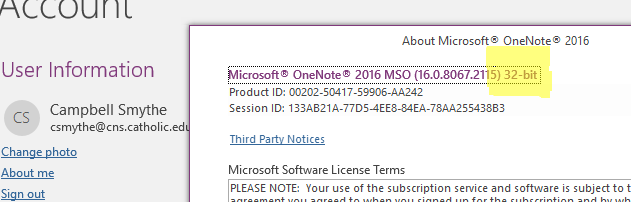
The OneNote version that I am using is the 32bit version (see below)
Next step you’ll need to download the OneNote Send to Sway Addin.
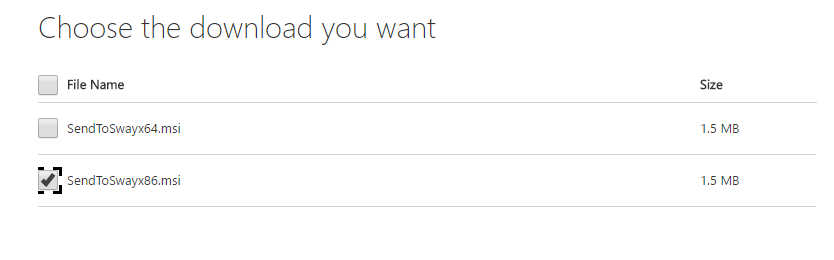
Go to – https://www.microsoft.com/en-us/download/details.aspx?id=50418 and click the download button, then choose the correct version of the Onenote Send to Sway addin for your install of OneNote – for me it is the 32 bit version (also referred to as x86).
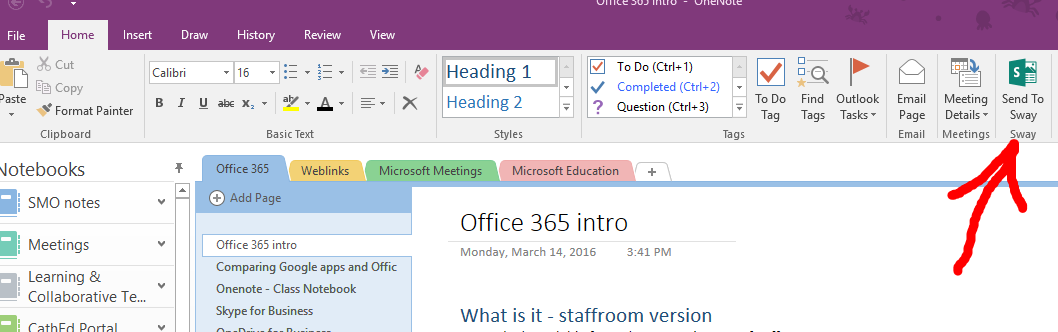
Download and then install the addin. Restart OneNote and you will see the “Send to Sway” button on the OneNote Ribbon.
Ready to Send to Sway?
So now youve installed the OneNote addin to Send to Sway, select a Page in OneNote and click the Send to Sway button.
You will need to login to your Sway account, then Sway will start…well,….Swaying……
Once it has finished you can view your sway and make any design changes to the look and feel you like.
Instagram is an app you use to share photos and short videos with your Followers. You can Follow other Instagram users (people or organisations) and view their images and videos. You can Like, Comment on images and tag your followers in image comments.
Introductory video Instagram Beginners (5:30)
My Use of Instagram
I’ve been using Instagram since it came out. I like that its all about Images. No posts about “what am I thinking” just posts from friends and others I follow which are Images or short Videos.
Picture it as a visual Twitter. Where Twitter is a platform for sharing short (140 character) text posts, Instagram is sharing just an Image – with a caption.
Images have captions and you can Tag people who are in the Image. You can say the location and also add some built in filters to modify your original image really easily. Add some Hashtags and you’re an Instagram #pro!
What does the Instagram app do?
The Instagram app is how you connect to your Instagram social network and share images. Open the app, take a photo or find one in your Photo Library, add a caption, add a Filter, tag someone, add a Location, share on Instagram or with other linked sites like Facebook or Twitter.
How can I use the Instagram app?
Instagram is a great way to keep in touch with people through Images. Let others know what you are up to through capturing and sharing images of your activity or to promote what you are doing. If you are a classroom teacher its a dead-set simple way to share what’s happening in the classroom – simply take a photo, use Instagram to share with your Followers – most likely Parents and other Teachers.
Instagram is owned by Facebook and is a trimmed down social media network centred around Images. View and share images from people and organisations you follow without the clutter of everything else Facebook includes. Follow celebs and interest groups for short visual updates.
I am a Learning and Collaboration technologies advisor living in Cairns, Australia. An educational technology leadership background and experience managing a globally located information technology team, has given me wide experience in the application of digital technologies to a variety of educational and workplace contexts.
Certified Microsoft Service Adoption Specialist
Microsoft eSports Leader
Microsoft Innovative Educator
Mountain Biker and Triathlete
Former Asia Pacific Information Services Manager MAFINT


 Microsoft Sway