Wunderlist is a great productivity app available to install on all your devices – iOS, Android, web browser, Apple Watch, OSX and Windows. Easily create a List then add To-dos. Lists sync via the cloud to all your devices and can be shared with other Wunderlist users, for example – create a Family Shopping list shared with everyone in the family instead of sticking a note on the fridge! Due dates can also be set in Wunderlist so you can be sure not to forget to get that To-do completed.
Introductory Video from Wunderlist (1:16)
How I use Wunderlist:
I’ve been using the free version of Wunderlist to manage my tasks and to-do lists for various projects and work since 2011. Wunderlist is available for iOS, android, Windows and Mac and because its hosted in the cloud my Lists are also available in a web browser.
I usually create a List per project but have other Lists named: Things to Buy, Movies to Watch, House Jobs, Stuff Loaned, Stuff Borrowed as a really easy way to make notes. Wunderlist has a default To-do List called Inbox where you can just put To-dos without adding them to a separate List.
As a Family we share a List called Food Shopping. Everyone has the app so can add items to the Food Shopping list anytime and if one of us is at the supermarket we can always crack that list open and see if there’s anything to get.
For work I’m also using Wunderlist but have setup a separate account to help separate work/home.
What does Wunderlist do?
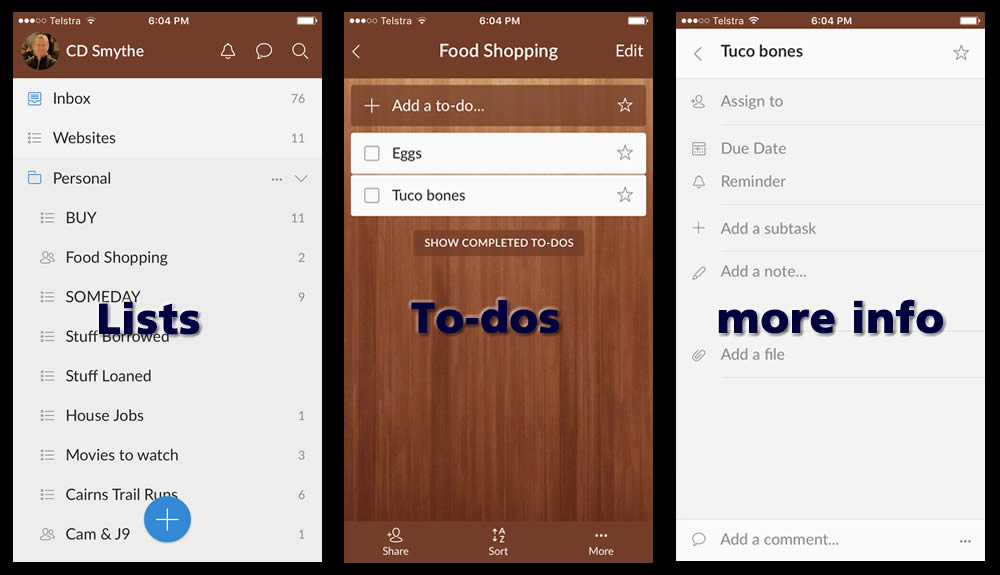
Wunderlist enables you to manage and organise all the tasks that you need to get done into Lists. A List is simply a collection of To-dos and each To-do can have extra information added to it such as: assign to, Due Date, Reminder, a subtask, Notes, Attached files, comments. See in the image below how a List – To-Do – more info are displayed. Lists can also be grouped into Folders – so for me as you can also see I use a Personal Folder, with a series of Lists, each with their own To-do items.
What I like most is that the Wunderlist interface is so easy to use and organise. With nothing complicated to think about it’s easy to get my head around what needs to be done.
Video: Short Wunderlist Tutorial (6:57)
Sharing Wunderlist to-Do Lists
Once you have a list created just tap the Share button and email the Link to your friend. They’ll need to have Wunderlist setup, but then they can just add the shared List to their app. Easy.
Wunderlist – difference between Free and Pro Versions?
So far I haven’t had a need to upgrade to the Pro version of Wunderlist as everything I need can be done without upgrading. Perhaps if I was in business and we were using it as a Team then the Pro version would become necessary. In 2015 Microsoft purchased Wunderlist so we may see it appear in the Office Suite in some form.
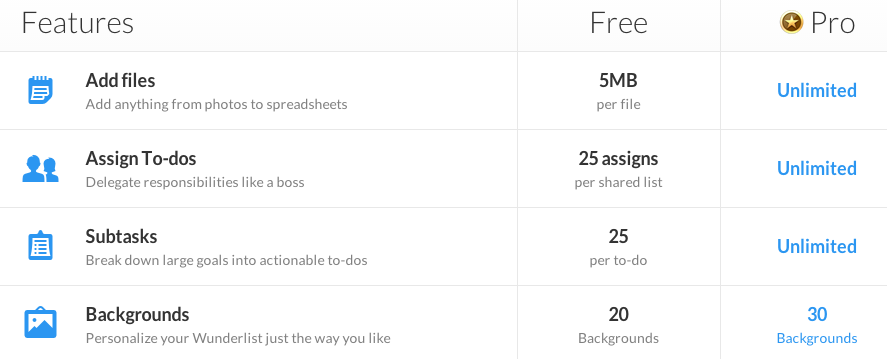
The premium or Pro version of Wunderlist basically offers you more of what you already get in the free version.
Wunderlist has a elegant and easy to drive interface which enables you to manage the things you need to get done alone or with others in an uncomplicated way. One of my favourite and busiest apps.
Australian company Canva.comis a website where you can create graphics and designs for web or print using a range of templates, graphics or your own uploaded images.
Images are created online, using Canva templates and you can upload your own images or use theirs for a fee. Non-Profits can apply for a free team account after submittingevidence of NP status.
How could I use Canva?
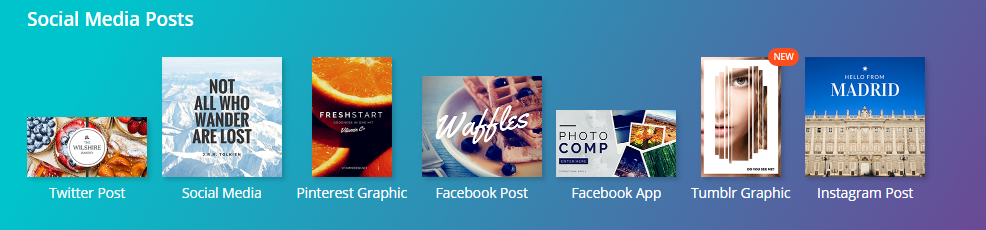
If you’re responsible to manage or contribute to various social media channels, Canva makes it really easy to create some of the social media headings and image posts that those sites need.
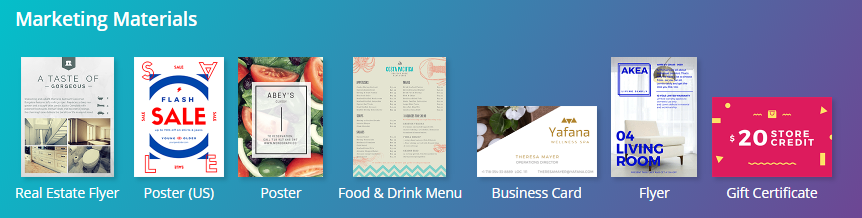
Images for brochures, flyers and general promotional material….
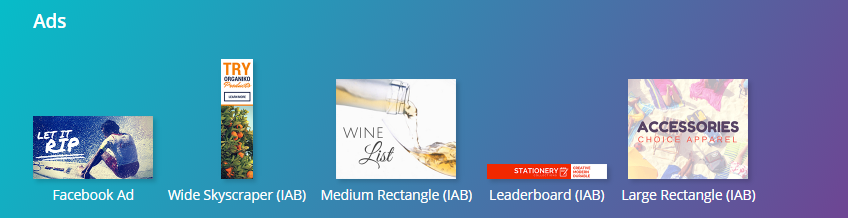
Images to use for adverts for Facebook, social media, website ads…..
What I like is that Canva templates gets you halfway there when it comes to creating these images. You dont need to look up what the best dimensions are for each type of image, just start with the template. It means your time can go more on creating than setting up.
Posts can contain images, links, video, animated gifs
Key Words:
Tweets – messages you post on Twitter
Twitter handle – your username eg. @cdsmythe
@ – this symbol appears before a username eg. @cdsmythe
Twitter Feed – the scrolling list of Tweets you see from people you follow
Twitter Followers – the collection of people you have “Followed” on Twitter. You will see their Tweets in your Twitter Stream
RT – retweet, click “Retweet” to send a Tweet you are reading to your Twitter Followers
Hashtags – hashtags enable you to find groups around a topic eg #Rio2016, #Holden, or #learning
What can I use Twitter for?
Getting information – follow others and see what they post in the Home stream of Tweets
Sharing information – found something worth sharing? Send a Tweet out with info, link, image
Following Hashtags # – hashtags are tags people put in their posts so they can be searched for and appear in a stream of their own. Follow the hashtag #elearning to find all posts containing that tag to see what people are saying
Connect with others – follow people with similar interests or who work in the same sphere as you. Build your own network of people you follow and who follow you
Tweets are Public
Direct messages with people who follow you are private
How do I use Twitter?
Create an account (free)
Add a photo – don’t be a Egg
Add something to your profile
You can set your Tweets as Public or Private – Public is default as that’s why most people go on Twitter
Search for and follow friends or work colleagues
Follow experts and recommended Tweeters (if they follow you then follow them back!)
If people you know and work with follow you, follow them back
See who those people follow and follow anyone who looks interesting
Start sharing some useful articles from the WWW and include an appropriate hashtag
Don’t use too many hashtags in a Tweet
Add your Twitter username to email signatures and blogs
You can Block people following you that you don’t want to follow you
Use Twitter Moments to easily follow the biggest stories on Twitter
In a Tweet you can add a Poll to gather some info or just have some fun
Check Notifications – it’ll show who’s followed you, retweeted you and other activity
Twitter Pro Tips:
Retweet and Like tweets to gain followers
Find and use some hashtags in your tweets
User other web tools like Buffer, Tweetdeck or Hootsuite to setup scheduled Tweets
Try and include an image in your Tweets – it makes them stand out more in the tweet stream
Limit your posts to 120 characters. 140 is the maximum, but you want to leave room for others to retweet you
Don’t just retweet everyone else’s posts, be original. Keep it balanced
Organise the people you follow into Lists – they will get notified so keep the List names positive
Be a happy Tweeter. No one likes a
Other apps integrate with Twitter – try Periscope (streaming video)
When pasting Links into a Tweet use a URL shortener like Tiny.cc or Bit.ly to get more text in
Some useful Hashtags:
#arted – art education
#aussieED – Australian teachers (Sunday night chat)
#earlyed – early education
#edapp – educational apps
#edchat – global education discussions
#edtech – educational technology discussions
#edu – education in general
#elearn – elearning
#FNQed – Far North Queensland educators
#gtchat – gifted and talented chat
#iPadEd – iPads in education
#mlearn – mobile learning
#MSFTeduchat – Microsoft in education chat (weekly)
#pegeeks – phyed teachers
#slide2learn – iOS devices in learning
I am a Learning and Collaboration technologies advisor living in Cairns, Australia. An educational technology leadership background and experience managing a globally located information technology team, has given me wide experience in the application of digital technologies to a variety of educational and workplace contexts.
Certified Microsoft Service Adoption Specialist
Microsoft eSports Leader
Microsoft Innovative Educator
Mountain Biker and Triathlete
Former Asia Pacific Information Services Manager MAFINT


 1 Minute Introduction to Wunderlist