Minecraft: Education Edition – How to add a custom skin on Apple iPad
Every gamer wants to have their own player skin – here’s how you can set your custom skin in Minecraft Education Edition using an iPad.
Minecraft Education Edition – set a custom skin on an iPad
What you will need:
- iPad
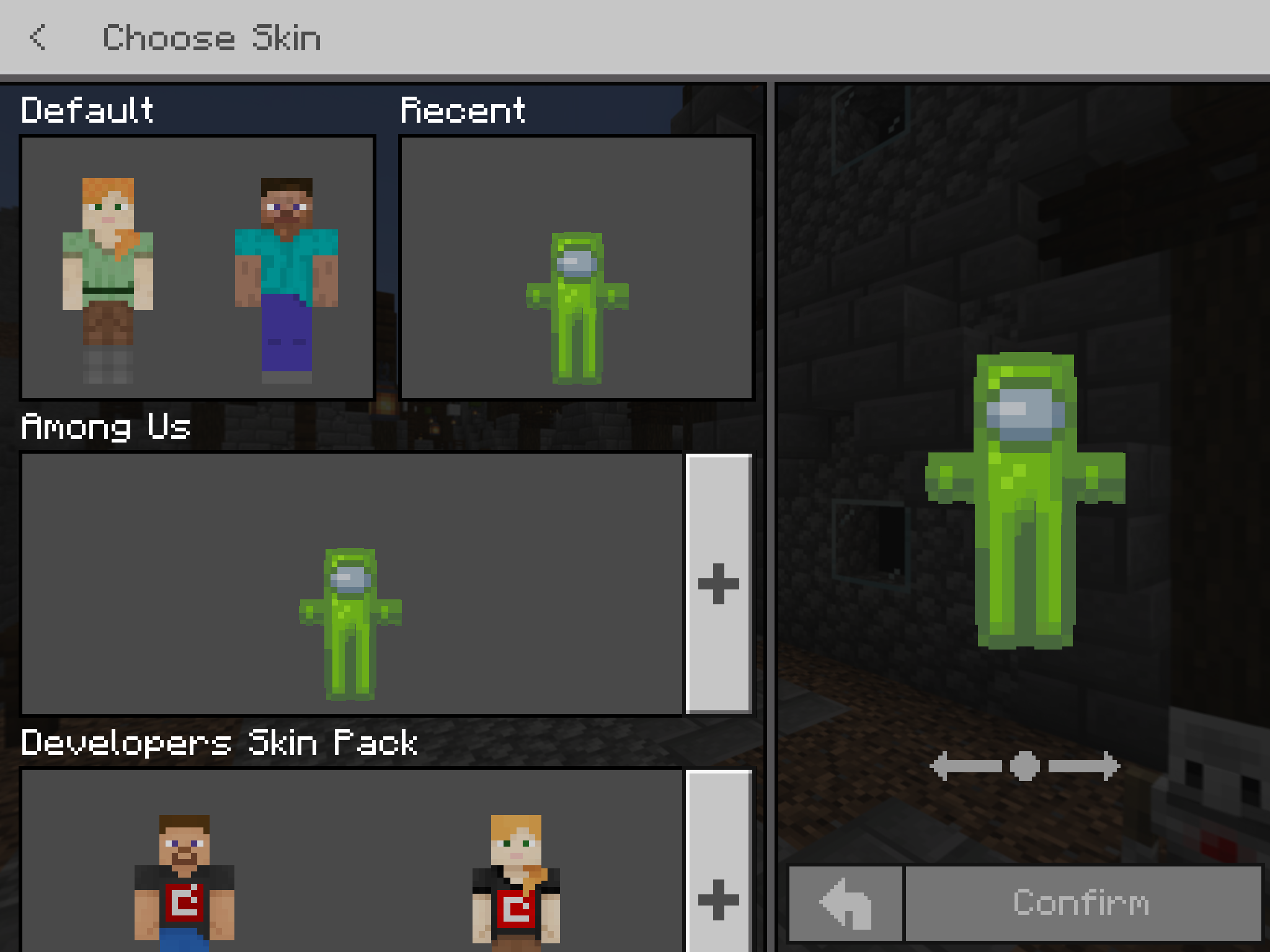
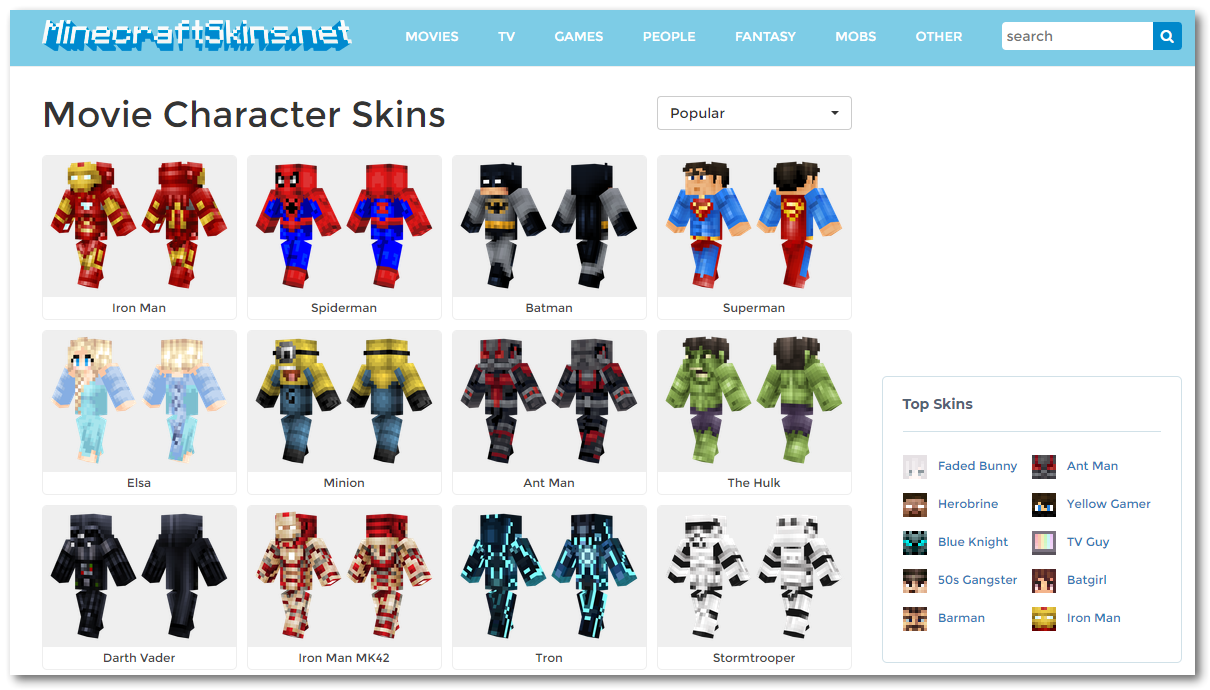
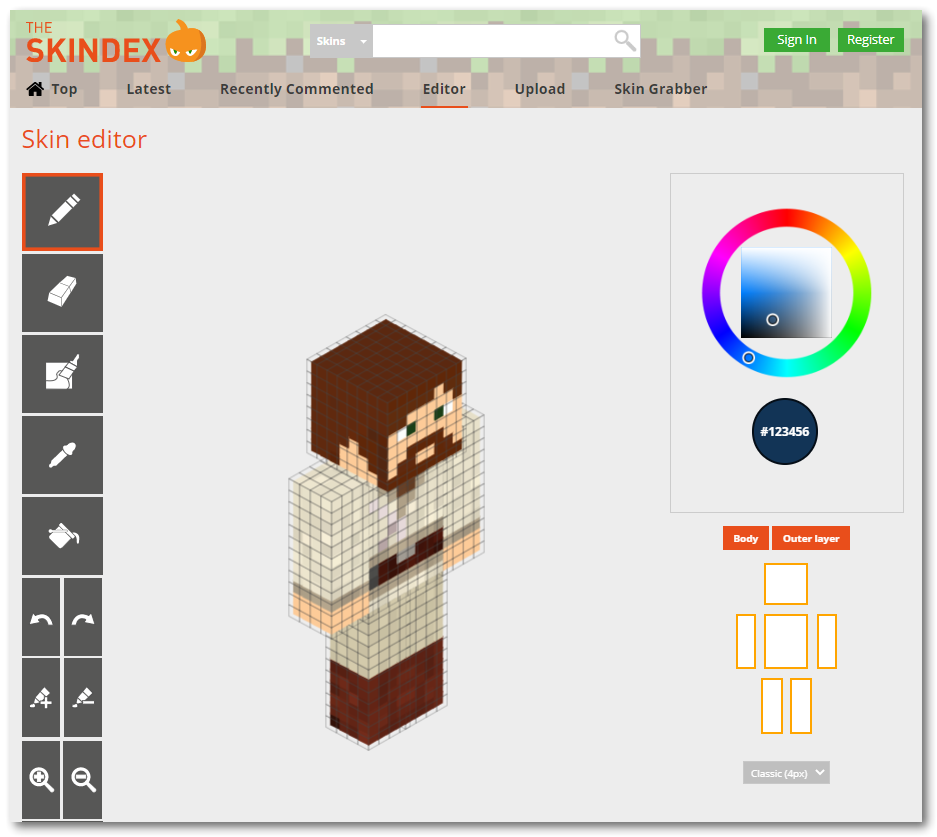
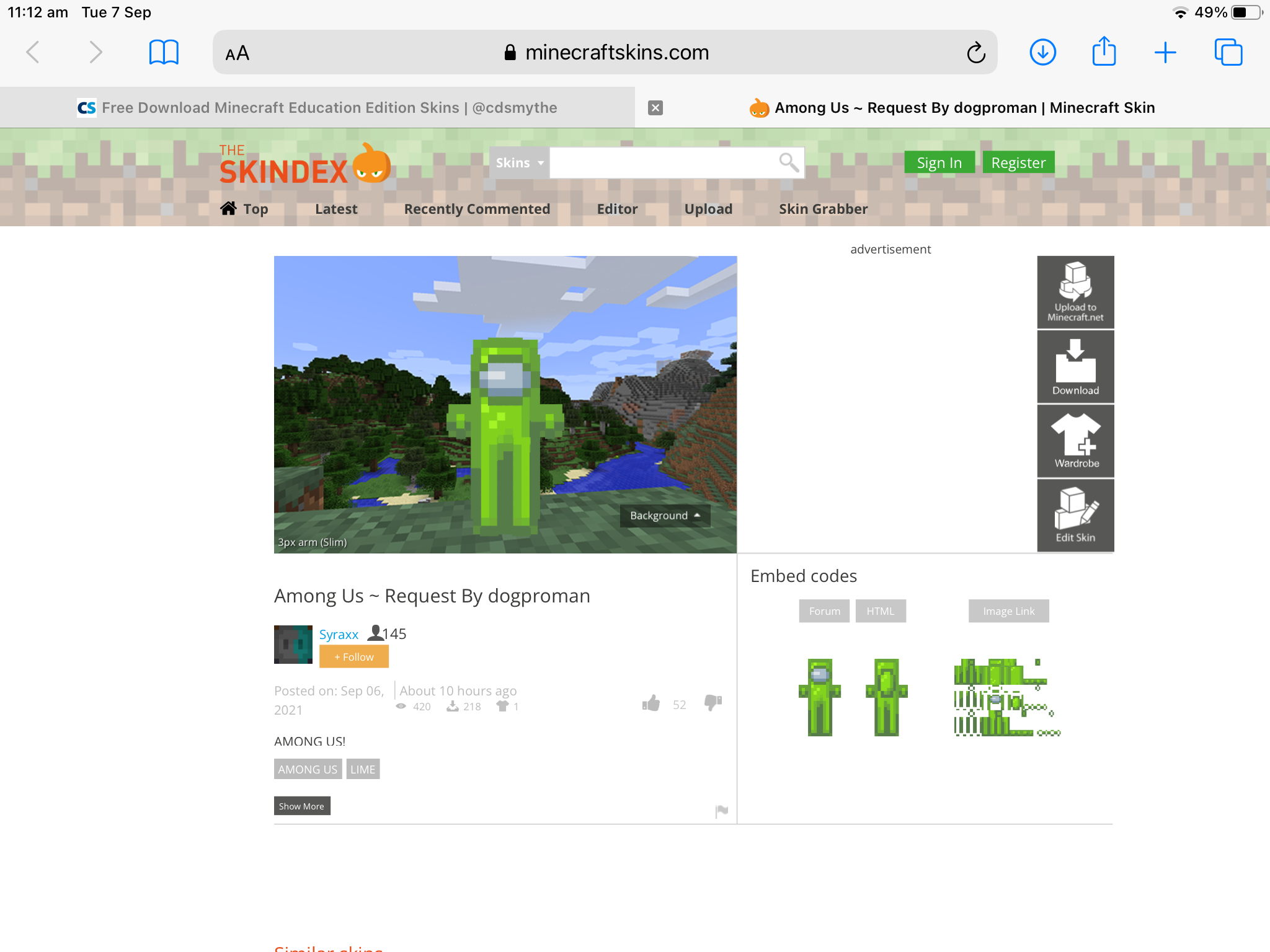
- a PNG file of a Minecraft skin (download free from Skindex) for this demo I’m using the green Among Us
Installing Custom Skin on iPad – Minecraft Education Edition
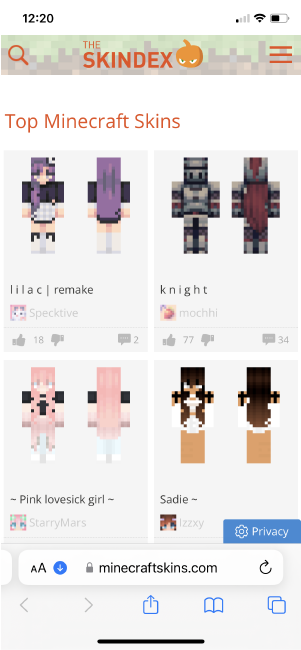
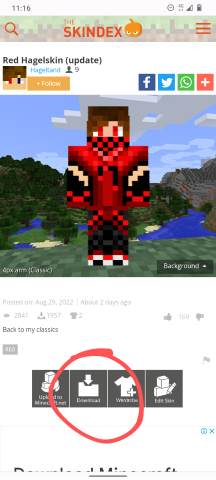
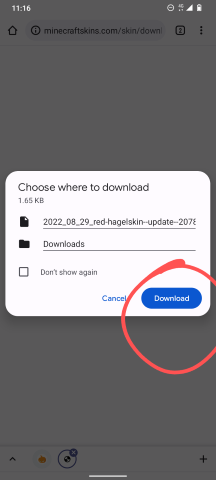
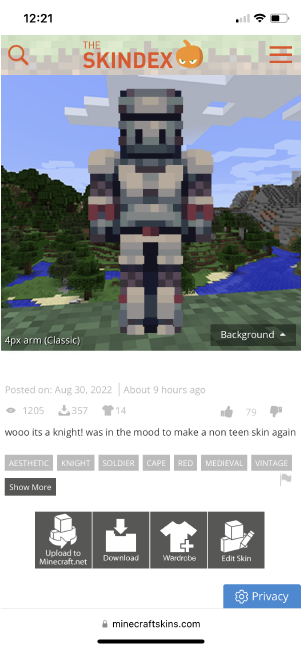
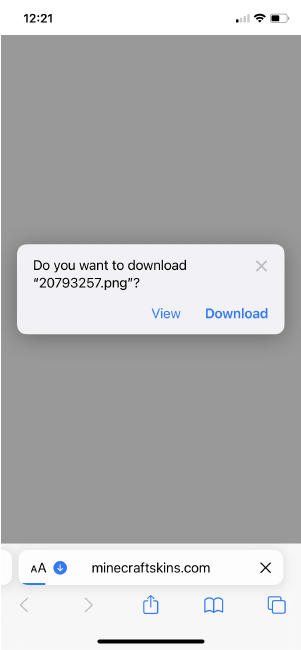
Go to Skindex and choose a skin to download – save the download to your iPad
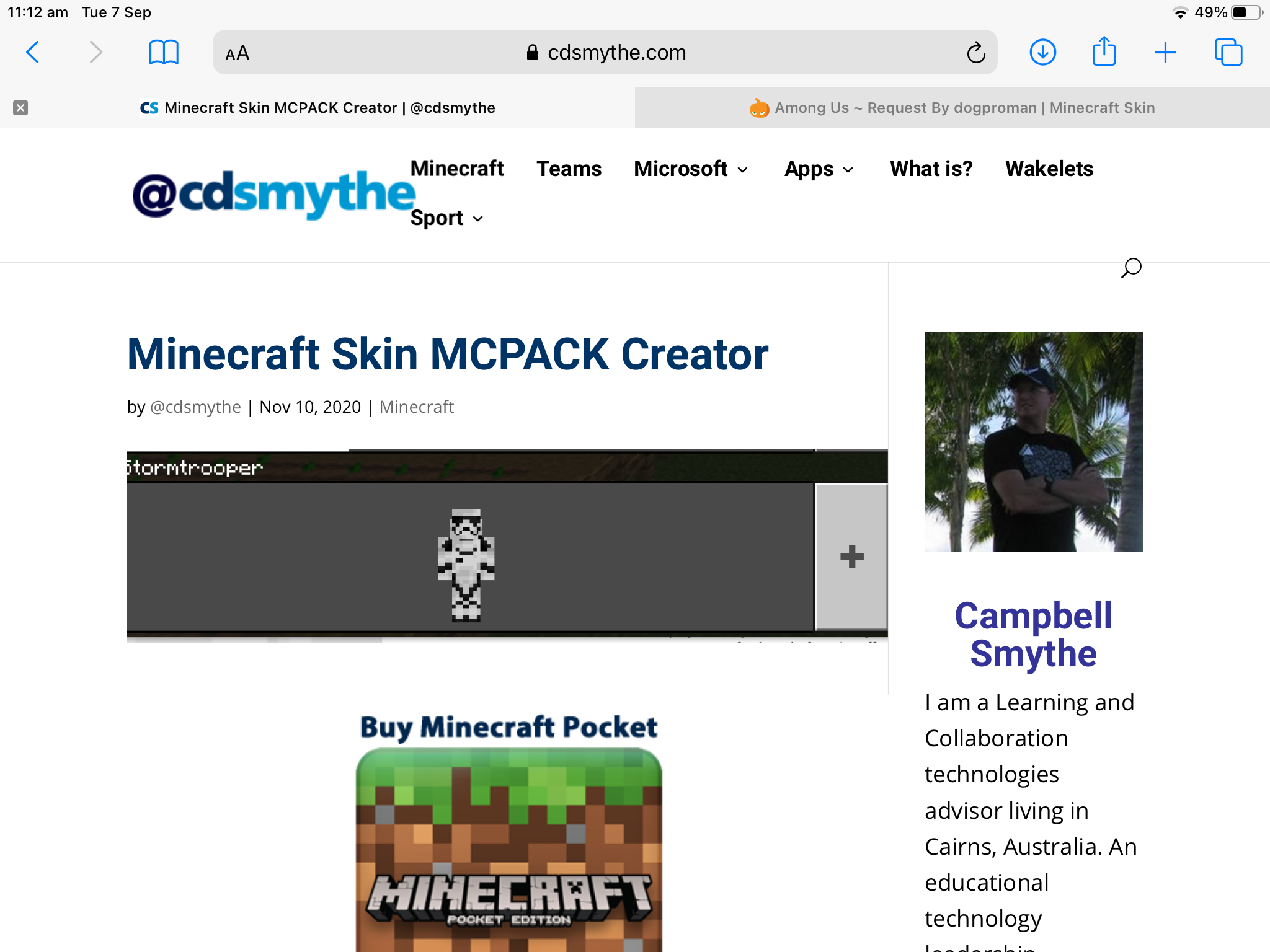
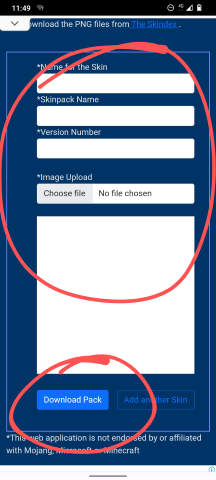
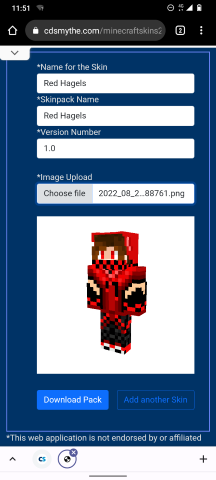
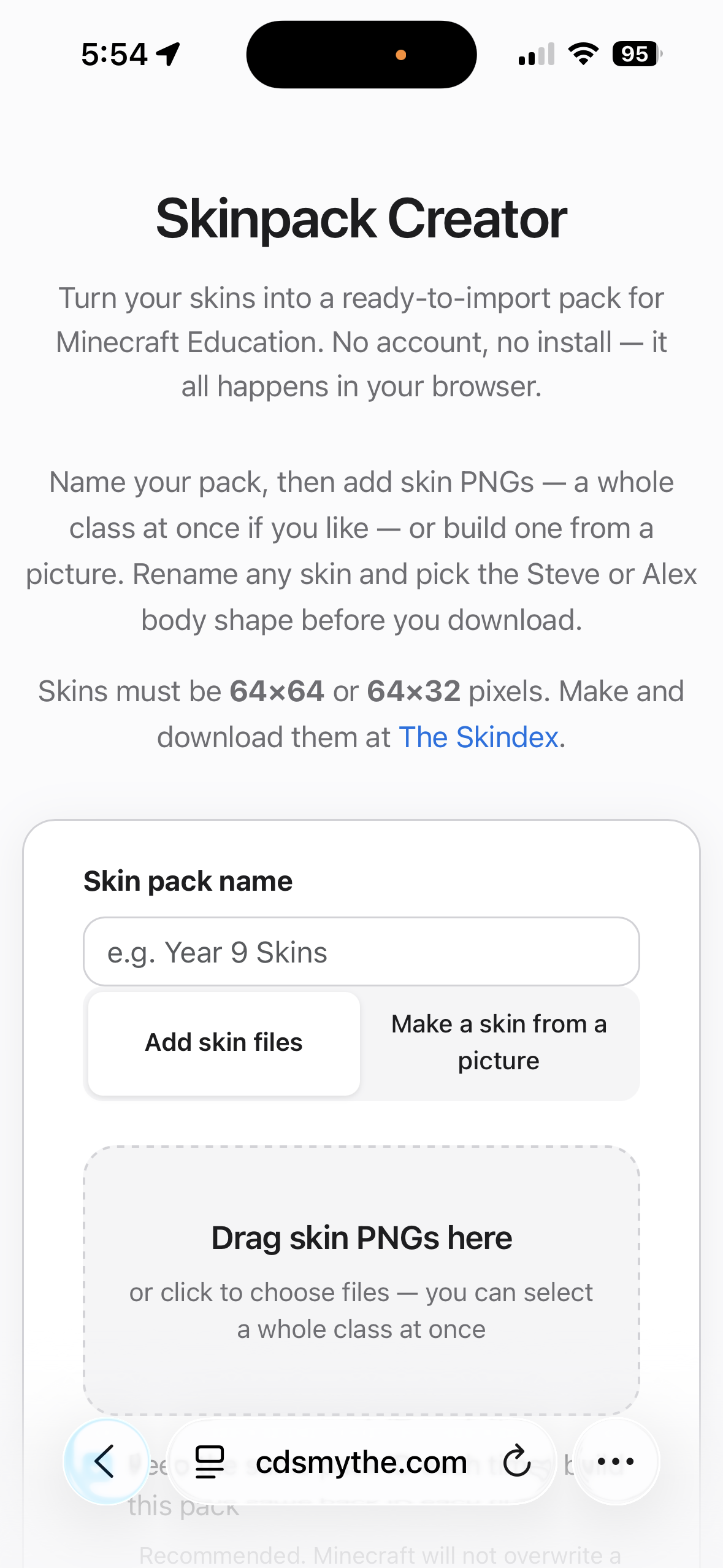
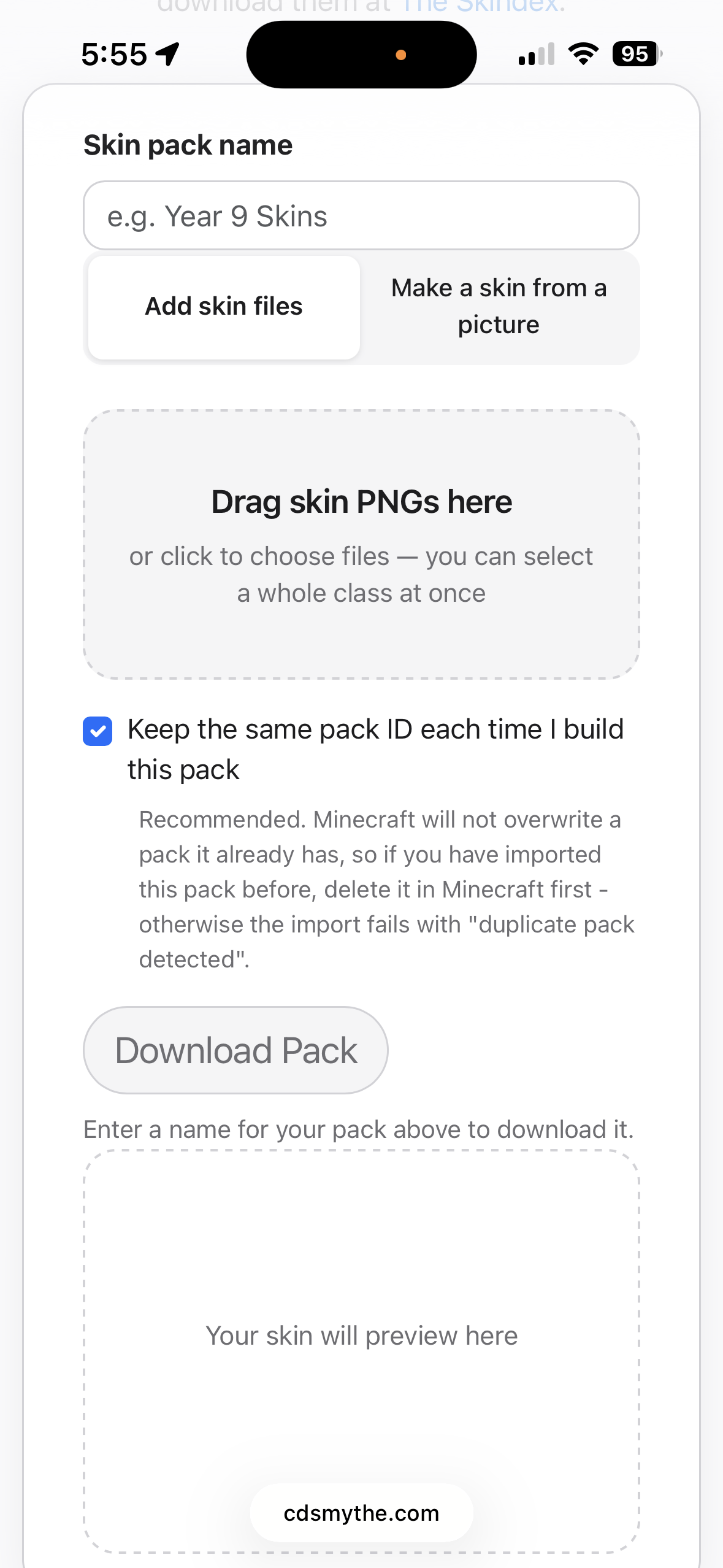
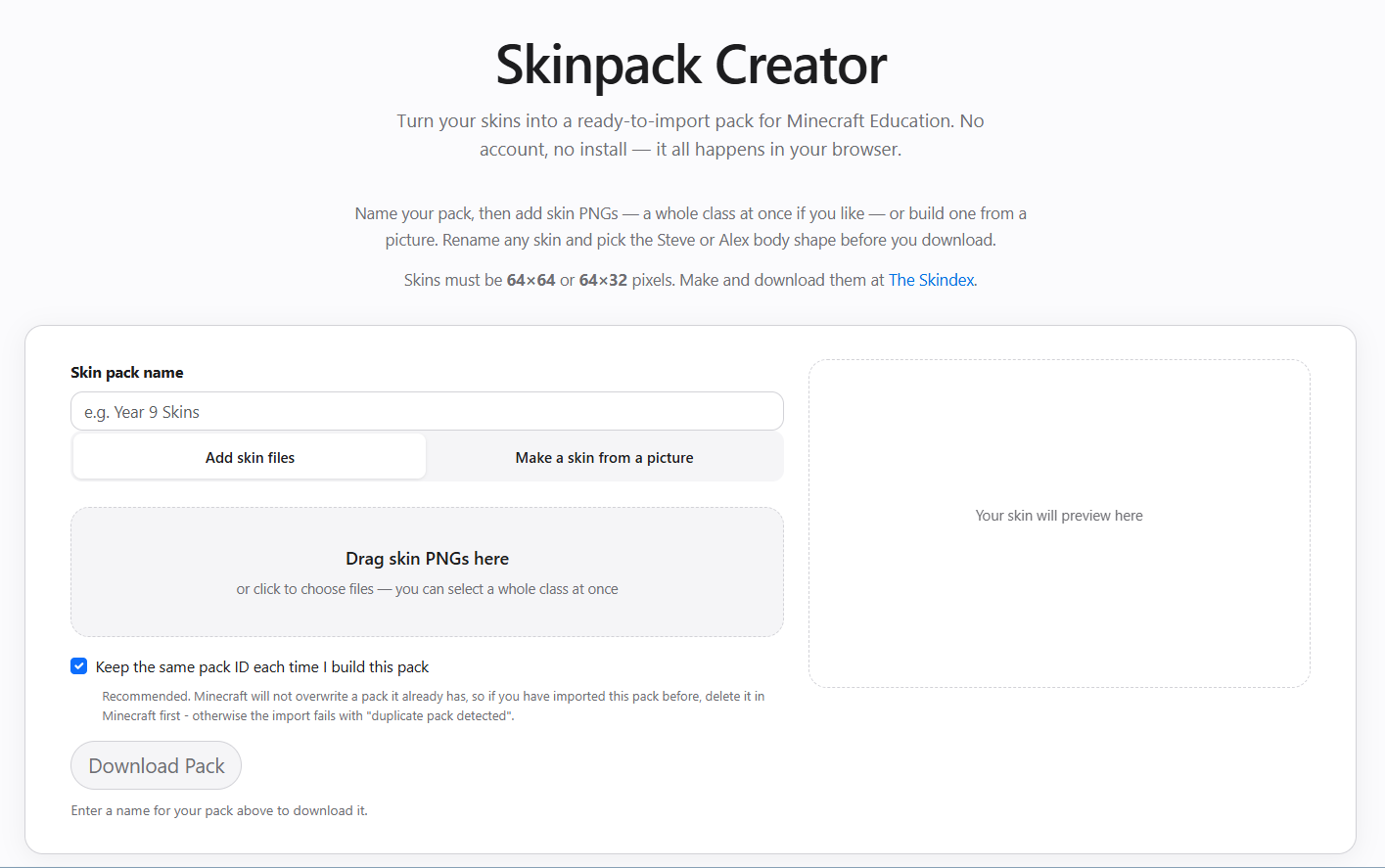
Complete the mcpack creator Form
– Skin pack name – any name for the pack eg. Among Us
– Add your skin – tap the box to choose it (you can add several skins at once)
– Each skin is named from its file name – tap the name to change it
– Choose Steve or Alex for the body shape
– Tap Download Pack
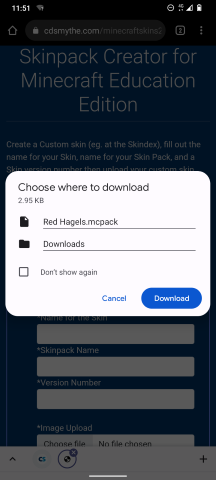
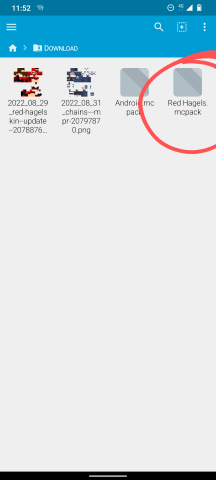
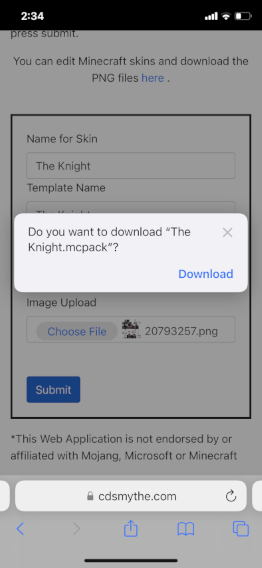
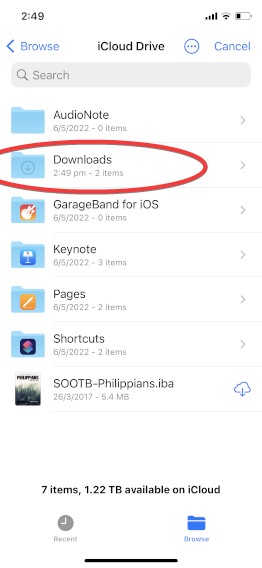
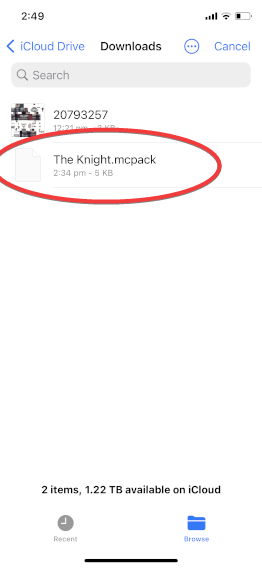
The MCPACK creator form will create the mcpack and offer it to download – save this to your iPad
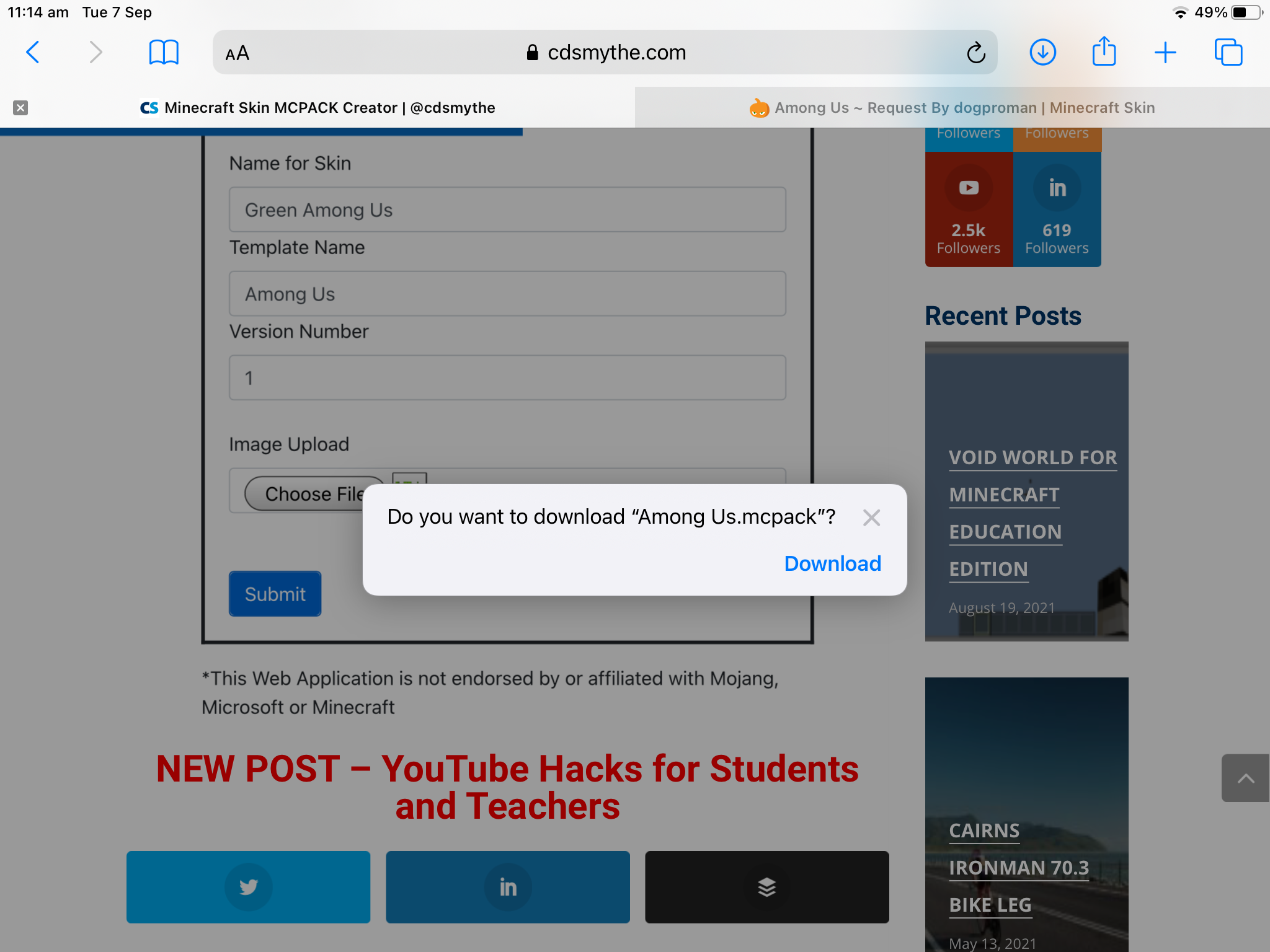
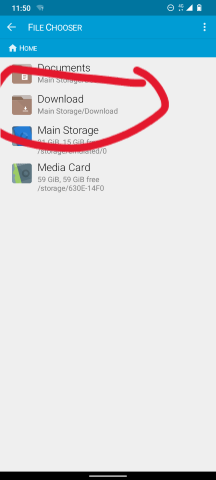
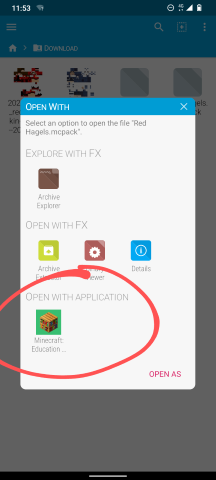
browse to the downloaded file and tap it to open it
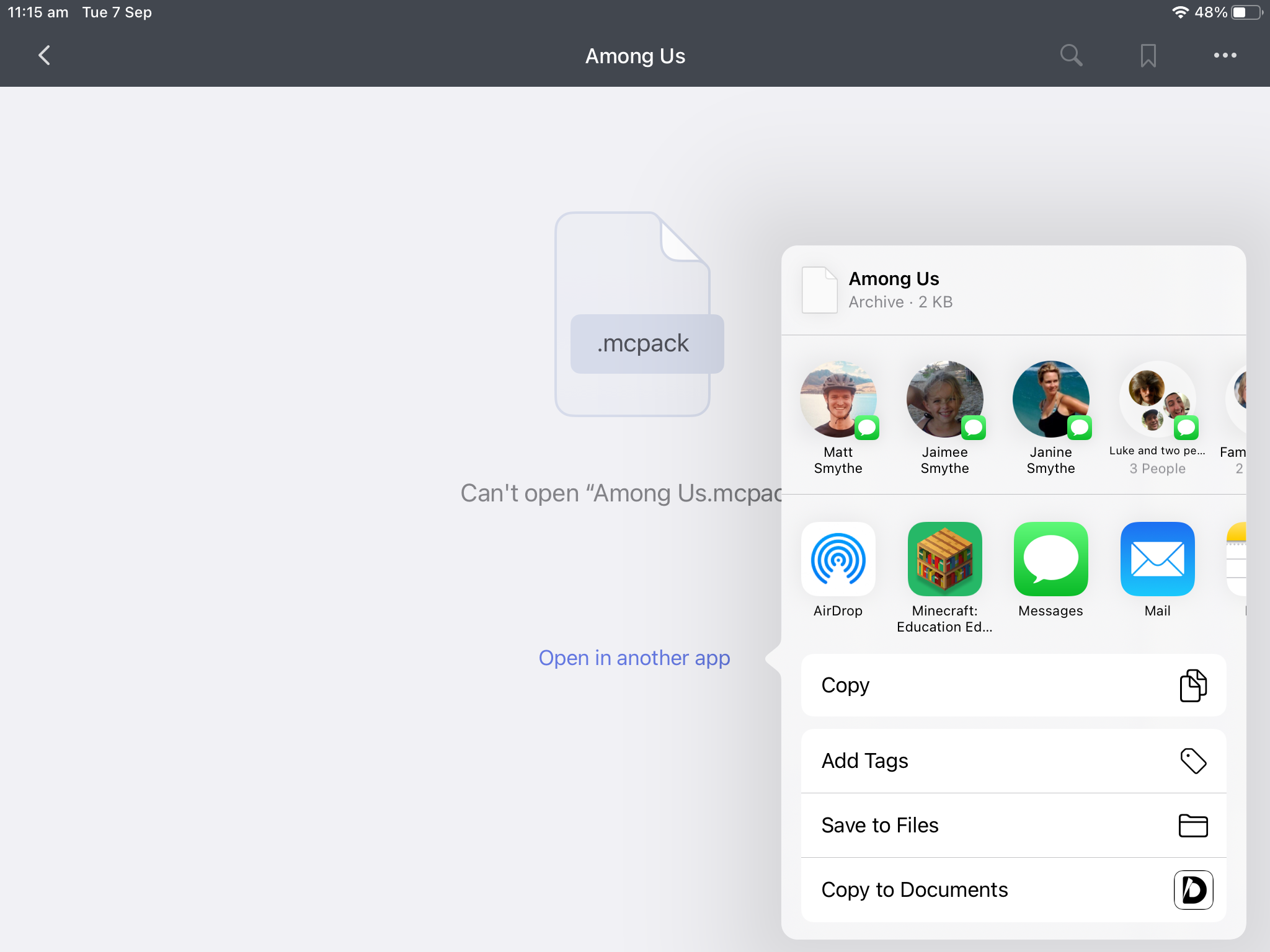
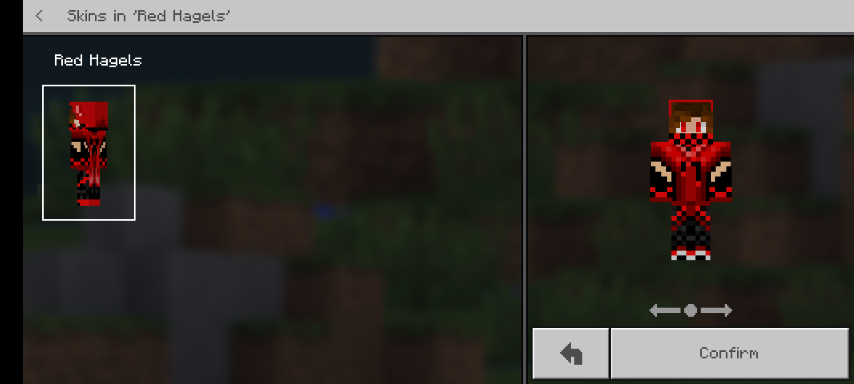
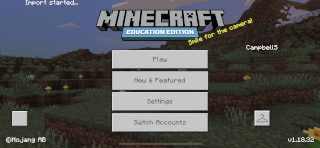
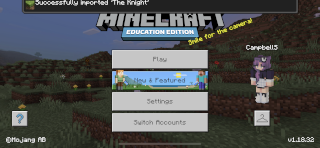
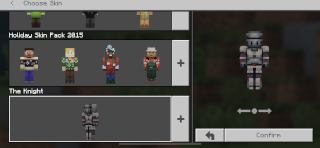
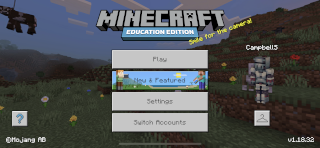
Minecraft Education Edition will open on your iPad and Import your custom skin into the game